

If you’ve been searching for a WordPress theme that gives you genuine design flexibility without forcing you to buy a page builder or hire a developer, Aurora is worth your full attention. It’s a premium WordPress blog theme built around a simple idea: your theme should adapt to you, not the other way around.
This post covers everything Aurora offers. Not a highlights reel. Not a marketing summary. Every layout, every option, every feature that ships with the theme, laid out plainly so you can decide whether it’s the right fit for your site.
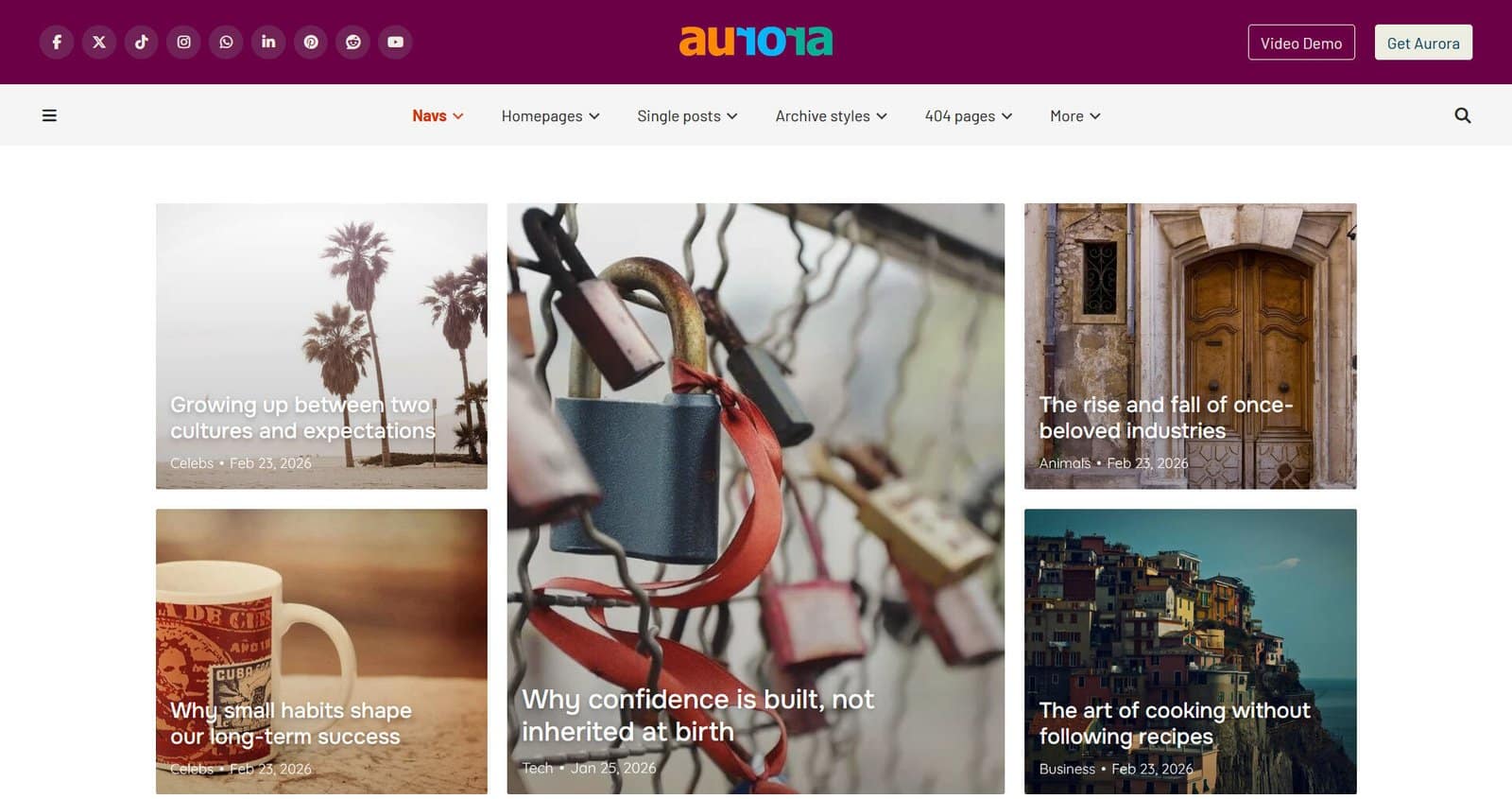
What Is the Aurora WordPress Theme?
Aurora is a premium WordPress theme designed for blogs, content-driven websites, and any site where design quality and publishing flexibility matter. It’s built entirely around the native WordPress Customizer, which means you control everything through an interface you already know, with live previews updating in real time as you make changes.
Aurora doesn’t require a page builder to look great or function well, but it doesn’t ask you to abandon one either. If you’re already using Elementor, Beaver Builder, or the block editor to build out your pages and posts, Aurora works alongside all of them without conflict. Your existing content stays exactly as it is, and any future pages or posts you build with a page builder will inherit Aurora’s typography, colors, and global styling automatically. The theme handles your site’s overall design system while your builder of choice handles individual page layouts, and the two coexist without getting in each other’s way.
There’s no proprietary drag-and-drop system to learn, no demo content you have to import and spend hours replacing, and no recurring subscription to maintain access. You install Aurora, open the Customizer, and start making it yours. Everything else is optional, including the page builder.
The Aurora WordPress theme comes loaded with options across every corner of your site. At a glance, here’s what the theme gives you:
- Layout options:
- Color settings:
- Body and heading text
- Menu text and icons
- Footer and header backgrounds
- Link and button styling
- Font settings
- Headings
- Body texts
- Header and Footer text
- Buttons
- Customizer Live Preview
- Performance and Technical Build
- SEO and LLM Optimization
- Multilingual and RTL Support
Aurora WordPress Theme’s Header Layouts (8 Options)
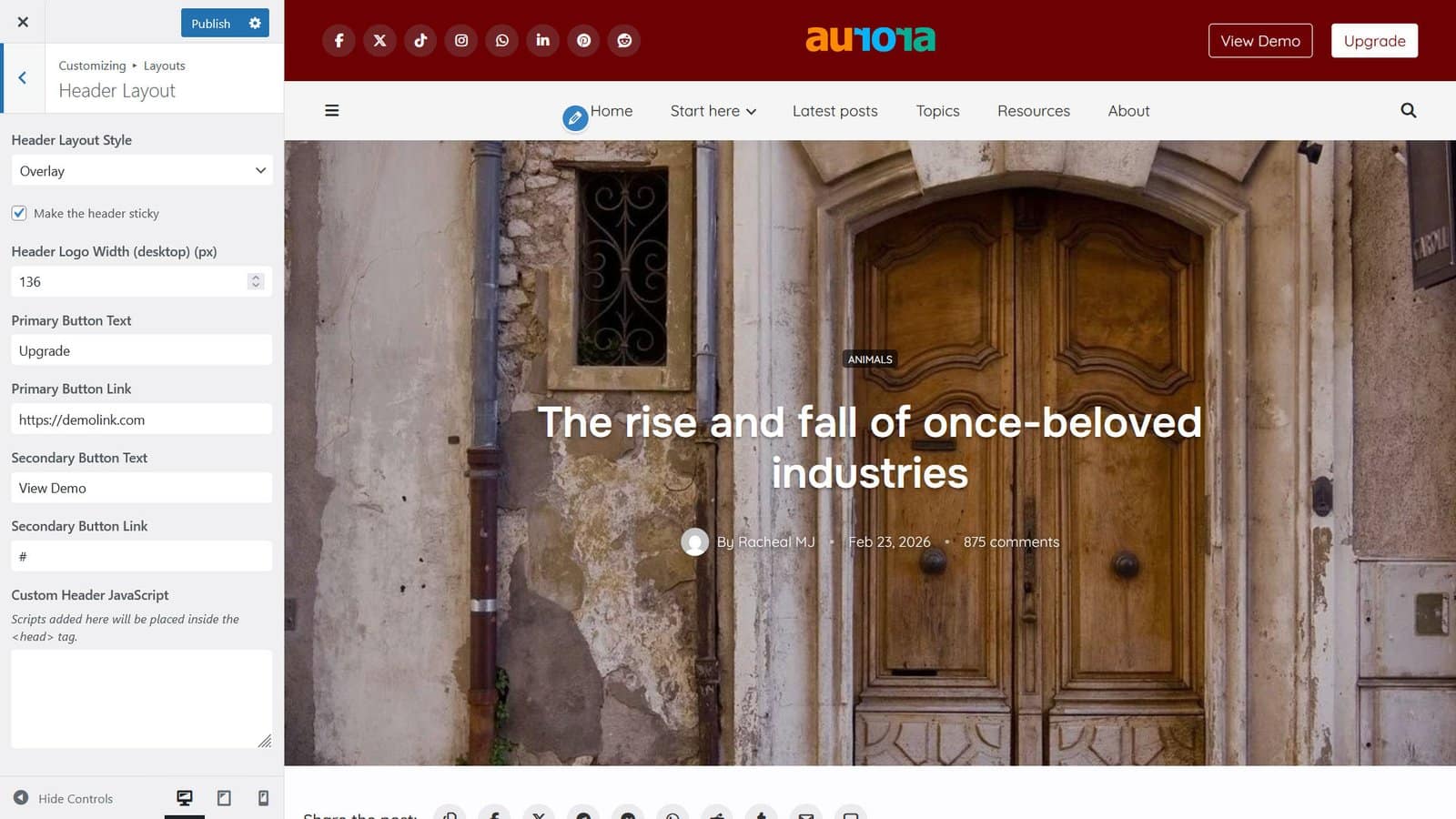
Your header is the first structural decision your visitors encounter, and Aurora gives you eight distinct header layouts to choose from: six are horizontal and two are vertical.
The horizontal headers cover the full range of common blog header styles, from minimal single-row layouts with the logo on the left and navigation on the right, to centered logo designs, to wider editorial layouts where the header takes up more visual real estate and commands more attention. Each one has a meaningfully different character, so switching between them genuinely changes how your site feels rather than just rearranging a few pixels. You can make any of these sticky with a single toggle. This fixes your header to the top of the browser window as visitors scroll down the page.
The two vertical headers are sidebar-style layouts where your navigation runs down the left side of the screen. These work particularly well for magazine-style blogs and portfolio-adjacent content sites where you want a strong, distinctive structure that stands out from the typical horizontal-nav blog.
Header features across all layouts include:
All headers allow a primary menu and a logo, typically with a responsive control for your logo width. A few headers support an additional secondary menu. The option to optionally set a mobile menu which shows on tablets and mobile is provided. All headers support a search form which may be inline, a popup overlay, or a slide-out.
Headers also support a primary CTA button — some versions support two. Most header styles support social icons and contact details display.
Homepage Layouts (5 Options, 4 Content Slots Each)
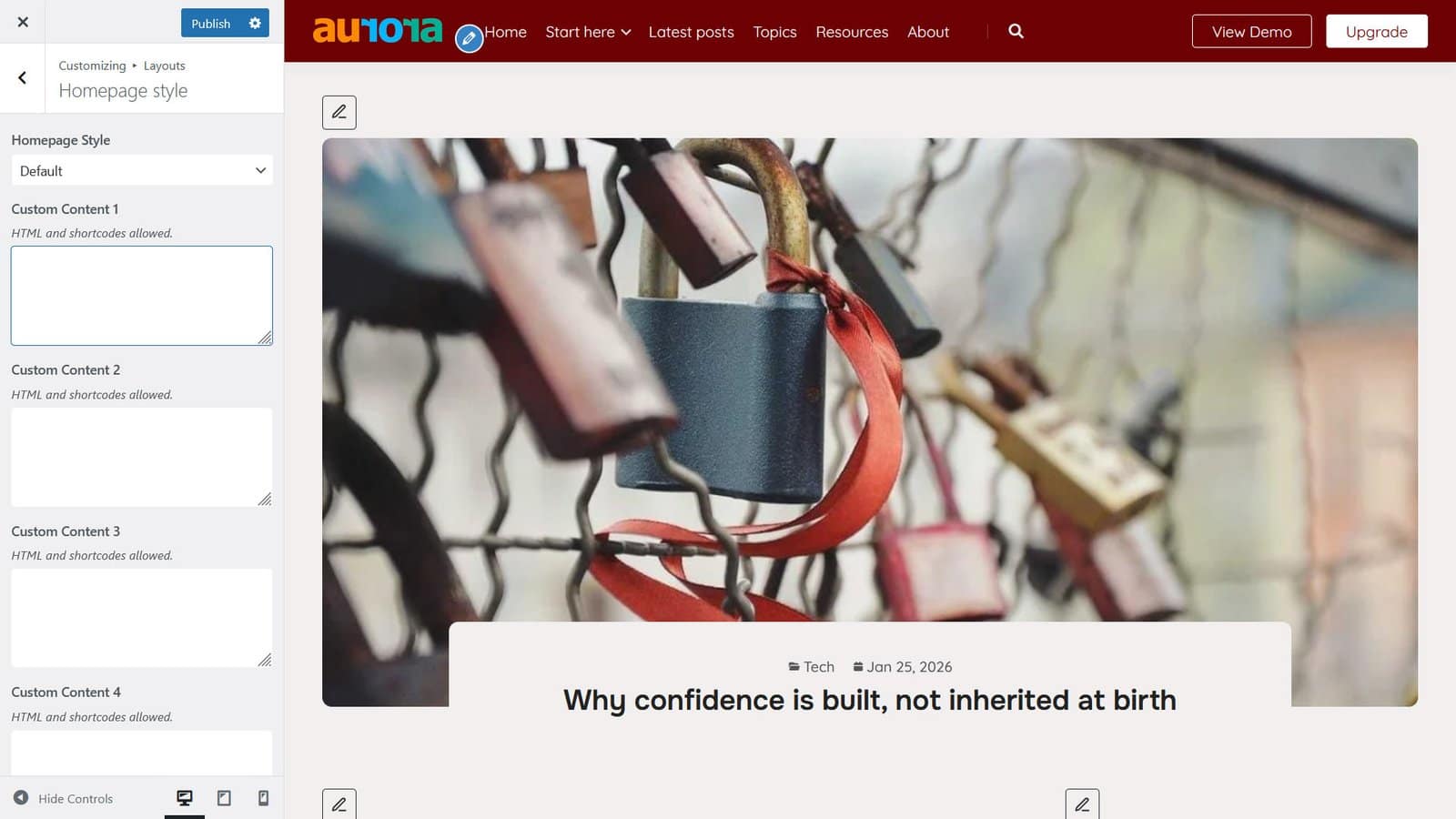
Aurora WordPress theme ships with five distinct homepage layouts. What makes these genuinely useful rather than just decorative is that each homepage comes with four independently configurable content slots that accept custom content and shortcodes. Perfect for embedding whatever you wish.
Every homepage layout uses a post block. Each block pulls from a specific category or tag, displays a custom post selection, or shows your latest posts. You can turn off blocks if you need to hide them. You can also manually decide which posts to include or exclude. This means your homepage isn’t a static template that doesn’t change or adapt to your style. It’s a flexible editorial canvas you configure to match what your site is actually about. These post blocks can be a grid with varying number of columns, a slideshow, or list.
Whether you want a bold hero section at the top followed by category-specific grids below, or a clean chronological feed with a featured section at the top, the five homepage layouts give you the structural variety to get there without rebuilding anything.
Single Post Layouts in Aurora WordPress theme (10 Options)

This is one of Aurora theme’s most significant advantages over typical blog themes, which usually offer one or two post layouts and call it a day. Aurora gives you ten distinct single post templates, each one handling your content differently in terms of featured image presentation, sidebar usage, and post meta placement, and author block styling.
Some layouts lead with a full-width featured image above the content. Others use an overlay style where the post title sits directly on top of the hero image. Some are sidebar layouts for sites that use widget-heavy designs, while others are full-width editorial layouts that let your content breathe across the full screen.
What all single post layouts share:
Each post page includes an author block at the bottom of the content. The author block displays the author’s name, bio, and avatar alongside social media icon links, so readers who enjoy a post have an immediate way to follow the person who wrote it. Aurora natively handles this without a plugin.
Posts also support breadcrumbs, estimated reading time, related posts sections, and post navigation (previous/next post links), all configurable through the Customizer. These aren’t afterthought features that you need shortcodes to enable. Aurora builds them into every single post template and styles them appropriately across all ten layouts. You also have the option of setting a dropcap style for your post’s opening paragraph.
Archive Layouts (13 Options)
Archive pages are where most blog themes phone it in. Aurora has thirteen archive layout options, which is more variety than most themes offer across their entire design.
These range from classic list layouts where posts stack vertically with large featured images, to grid layouts in two or three columns, to alternating layouts where the image and text switch sides post by post for an editorial rhythm, to card-style designs with more compact post previews. The Aurora WordPress theme also lets you set the number of posts to display per archive, including all your posts at once.
Masonry toggle. Any of the grid-based archive layouts can switch to masonry mode, where posts of varying heights arrange themselves naturally without forcing every card to a uniform height. This works especially well for sites with featured images of different aspect ratios.
Ajax load-more and pagination. Rather than requiring a plugin to add load-more functionality, Aurora WordPress theme handles it natively. You can choose between traditional numbered pagination or an Ajax-powered load-more button that loads additional posts without a full page reload. The Ajax approach keeps readers on the page and tends to improve time-on-site.

Search and Author pages in the Aurora WordPress Theme
The Aurora WordPress theme includes dedicated templates for both author archive pages and search results pages, two areas that most themes treat as an afterthought.
The author page (4 styles available) displays a full author profile at the top, including the author’s avatar, display name, bio, and social media icon links, followed by a paginated archive of everything that author has published on the site. If you run a multi-author blog, this gives each contributor a proper public profile rather than a bare list of posts with no context around who wrote them.
The search results page (3 styles available) uses a customizable colored header with a prominent search form. Search results display post excerpts, featured images, and post meta in the same clean format your readers already see across the rest of your content.


404 Page Styles (5 Options)
Most themes have one 404 template and it shows. Aurora WordPress blog theme ships with five distinct 404 page styles, each designed to keep a lost visitor engaged rather than frustrated. You can choose a layout that matches the overall feel of your site, whether that’s minimal and clean, or something with more personality and visual weight.
What all 404 layouts share:
Across all five layouts, you can customize the messaging your visitors see when they land on a missing page. Each 404 template also supports a dedicated navigation menu and a configurable CTA button, giving lost visitors a clear path back into your content. And if you want to set the visual tone, every layout accepts a custom background image.

Footer Layouts (5 Options)
Aurora gives you five footer layouts covering the most common structural needs. Simple single-row footers with just copyright text and your social links, one-column and three-column widget-area footers for sites that use footers as secondary navigation hubs, and fuller four-column layouts for larger sites with more content to surface at the bottom of every page.
You control your footer layout styling with the rest of your theme and it picks up your footer color and typography settings automatically. You can also display custom content from your code or shortcode above the footer.
Footer widgets include:
Social links on all layouts, one to three navigation menus for the footer, a footer bio, a custom footer logo (defaults to header logo if not set), custom copyright text, custom column titles, and in some layouts, your recent posts.

Aurora WordPress theme’s Color Panel

Aurora gives you full control over your site’s color scheme directly from the Customizer. You set the colors for your site background, body text, links, buttons, header, footer, and accent elements independently, so every part of your site gets tuned to match your brand without touching a stylesheet.
Here’s an overview of what colors you can set for various elements:
Headers: Header background color, header topbar background color (some header layouts), text color, text hover color, active text color, and header icon color. If not set, icons will inherit the colors of your text.
Footer: Footer background color, text color, and text hover color.
Links and buttons: Normal and hover color for the main content and their background color. Link and buttons have independent styling.
Text and headings: Normal color for main site text and a separate setting for headings.
Sidebar: Sidebar background color.
Typography settings

Aurora lets you set independent fonts for your headings, menu items, buttons, and body text, choosing from an extensive library of Google Fonts, and pair them however you like. Size, line height, letter spacing, and font weight are all adjustable per element. Every typography setting also includes device-specific controls, so you can fine-tune how your text scales across desktop, tablet, and mobile independently. What looks right on a large screen doesn’t always translate well to a phone, and Aurora lets you correct that without writing a single line of CSS.
Instead of styling all headings the same, Aurora WordPress theme has controls for each heading tag. This lets you set different properties for your H1 to H6. However, Aurora cascades font family settings to subsequent headings; the font family you set to your H1 automatically applies to the other heading tags, that is if any doesn’t have a set font family.
Real-Time Customizer Control
Everything described above is controlled through the native WordPress Customizer. No third-party panels, no settings pages buried under a custom admin menu, no guessing whether your changes have applied. You open the Customizer, make a change, and see it reflected in the live preview immediately.
What you can control from the Customizer includes:
Typography, with independent font selections for headings and body text, font size controls, line height, and device-responsive adjustments so your typography scales properly on mobile, tablet, and desktop without manual CSS. Colors for every meaningful element across the theme, layout style and their associated features, and sidebar presence.
The Customizer is also where you toggle features on or off, set post per page for archives, author and search pages, set your date format, and add custom content to the homepage/blog page and above the footer. All of it lives in one place, organized by section, with live feedback throughout.
Performance and Technical Build
Aurora is built to be fast without requiring you to do anything special to make it fast. The theme is lightweight by design, with no unnecessary JavaScript libraries loaded on every page and no external dependencies that slow down your first paint.
Aurora bundles the latest Font Awesome version locally within the theme rather than loading it from an external CDN. This is both a performance improvement and a privacy consideration. Fewer external requests means faster load times and no third-party tracking associated with icon delivery.
The theme has achieved a GTmetrix Grade A and a PageSpeed score of 98 on Google’s testing tools, which puts it comfortably in the range that search engines reward.
SEO and LLM Optimization
Aurora’s code structure is built with semantic HTML throughout. Proper heading hierarchy, clean archive markup, structured post meta, and logical content flow all contribute to how well search engine crawlers can read and understand your pages. Beyond markup, Aurora also outputs structured data automatically — every post gets a full Article or NewsArticle schema block with author, publish date, and breadcrumb data baked in, so search engines get machine-readable context without you lifting a finger.
Beyond traditional SEO, Aurora’s structure also positions your content well for discovery through AI-powered search tools and large language models. As platforms like ChatGPT, Perplexity, and Google’s AI Overviews increasingly surface content from across the web, sites with clean semantic structure, fast response times, and well-organized content hierarchies are better candidates for being accurately indexed, cited, and recommended. Aurora ensures your blog meets that standard.
The theme also supports breadcrumbs, proper category and tag archive structures, and clean pagination markup, all of which support crawlability and help search engines understand your content’s organization at a site-wide level.
Aurora WordPress Theme: Built With Multilingual and RTL Support
Aurora ships with translation-ready files and includes pre-built translations in seven languages: French, Dutch, German, Arabic, Italian, Spanish, and Japanese. If you’re building a site for an international audience or a non-English speaking market, you’re not starting from scratch.
Every string in the theme is translation-ready, which goes beyond just the pre-built language files. Any piece of text Aurora outputs on the frontend, from button labels and post meta to navigation strings and placeholder text, can be translated or customized through your preferred multilingual or translation plugin. Whether you use WPML, Polylang, Loco Translate, or any other standard WordPress translation tool, Aurora WordPress blog theme is fully compatible and gives you complete control over every word your visitors see.
Full RTL (right-to-left) layout support is included for Arabic and Hebrew, with layouts that mirror correctly and typography that handles right-to-left text properly without requiring any additional configuration.
Who Aurora Is Built For
Aurora was designed with bloggers at its center, and that shows in the depth of its single post layouts, archive options, and content-focused homepage designs. But the theme isn’t exclusive to bloggers in the traditional sense.
If you run a business that uses content as part of how you attract and educate customers, Aurora gives your site a level of editorial quality that typical business themes don’t offer. A consultancy with a resource blog, a SaaS product with a content marketing strategy, a creative studio that publishes case studies and industry commentary. All of these benefit from Aurora’s design depth and layout flexibility in exactly the same way a full-time blogger does.
The theme is also well-suited to designers and developers building sites for clients. Because every layout choice lives in the Customizer and nothing requires custom coding to adjust, it’s efficient to configure and easy to hand off.
Aurora WordPress Theme; your best choice
Aurora is one of those themes that rewards exploration. The first impression is a clean, fast, professional blog theme. The deeper you go into the Customizer, the more you realize how much has been built into it: ten post layouts, thirteen archive styles, eight headers, five homepages each with four configurable sections, native author social blocks, Ajax loading, masonry grids, RTL support, local Font Awesome, multilingual translations, and live preview for all of it.
If you’ve been looking for a WordPress theme that won’t limit you six months from now, Aurora is a strong answer to that question.
