

All of Aurora’s design settings live in the WordPress Customizer. This page maps every panel to what it controls so you can find any setting quickly.
To open the Customizer, go to Appearance → Customize in your WordPress dashboard.
Site Identity
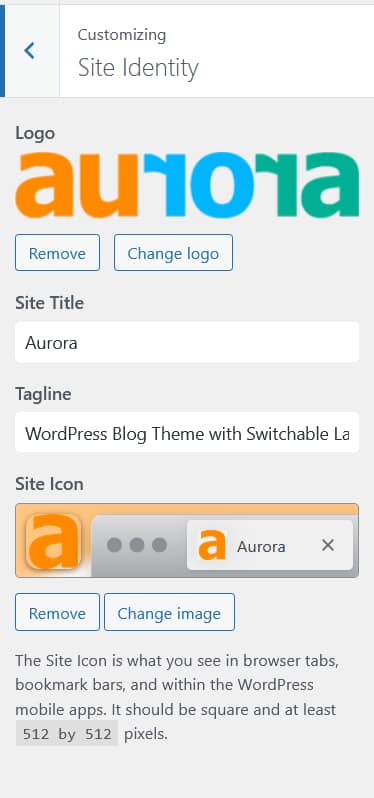
Upload your site logo, set your site title and tagline, and upload a site icon (favicon). Aurora uses the site title as a text fallback when no logo image is set.
Header Layout
Controls everything about your site header:
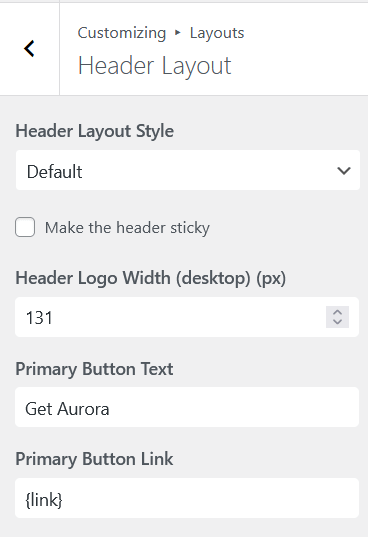
- Header Layout Style — select from 8 designs (6 horizontal, 2 vertical)
- Sticky Header — toggle to keep the header fixed as visitors scroll (horizontal layouts only)
- Logo width — set independent pixel values for desktop, tablet, and mobile
- CTA Buttons — configure up to 2 call-to-action buttons with custom labels and URLs
- Header JavaScript — add custom JS to inject into the page
<head>
Homepage Style
Controls the layout and content of your homepage:
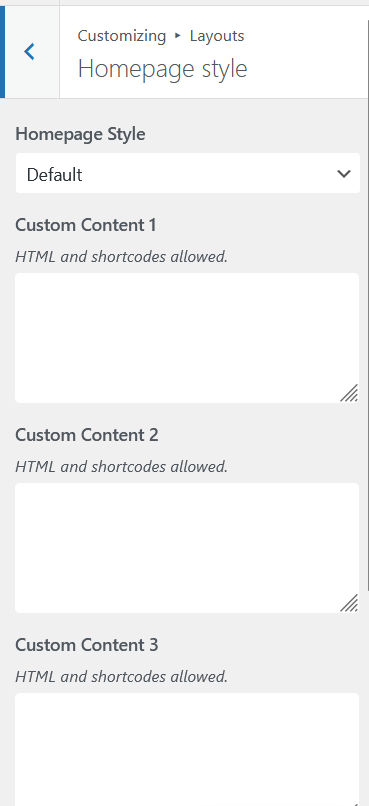
- Homepage Style — select from 5 designs
- Homepage Sections — configure the source, display style, and excluded posts for each section in the active layout
- Custom Content Areas — inject HTML or shortcodes into the 4 available slots between post sections
Single Post Layout
Controls the design of individual post pages:
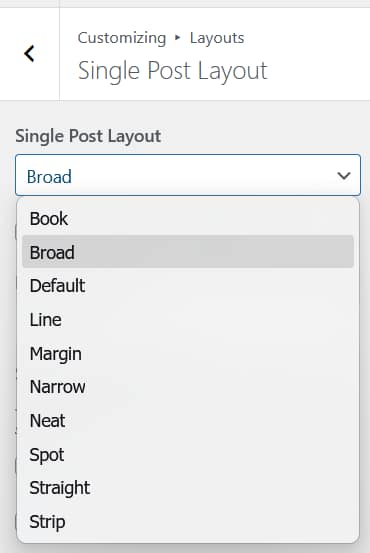
- Single Post Layout — select from 10 designs
- Drop Cap — choose a drop cap style for the first letter of post content (None, Bold, Casual, Pretty)
- Share Buttons — enable or disable share buttons per platform (10 platforms supported)
- Sidebar — toggle sidebar visibility on single posts
Archive Layout
Controls category, tag, date, and search archive pages:
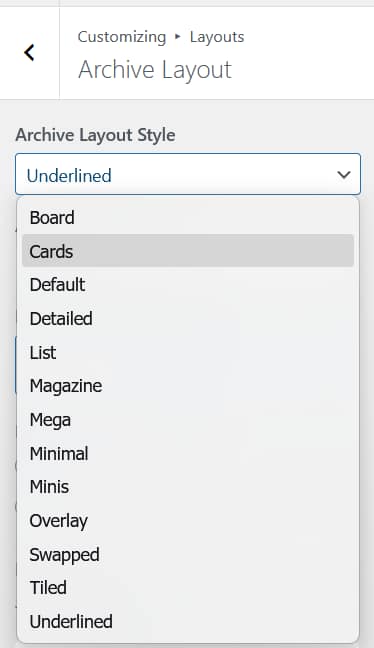
- Archive Layout Style — select from 13 designs
- Masonry — toggle masonry grid (available on 6 of the 13 layouts)
- Post per page — decide how many posts to show at once on archives
- Show More Posts — switch between numbered pagination and an AJAX Load More button
- Sidebar — toggle sidebar visibility on archives
- Archive Banner — show or hide the category/tag/date title above posts
Author Page Layout
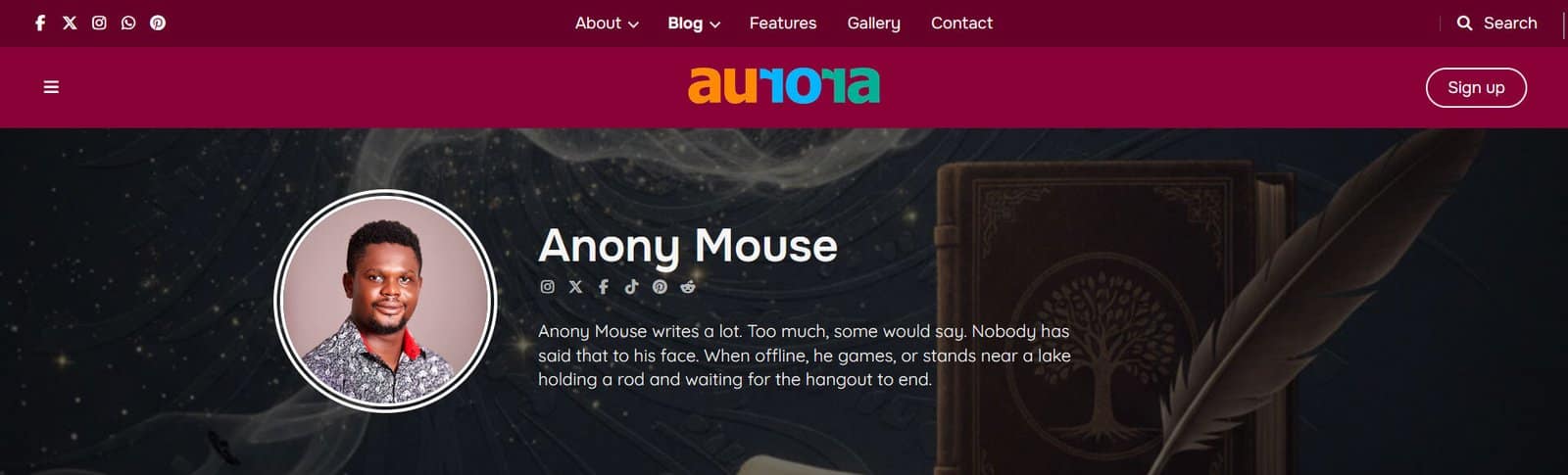
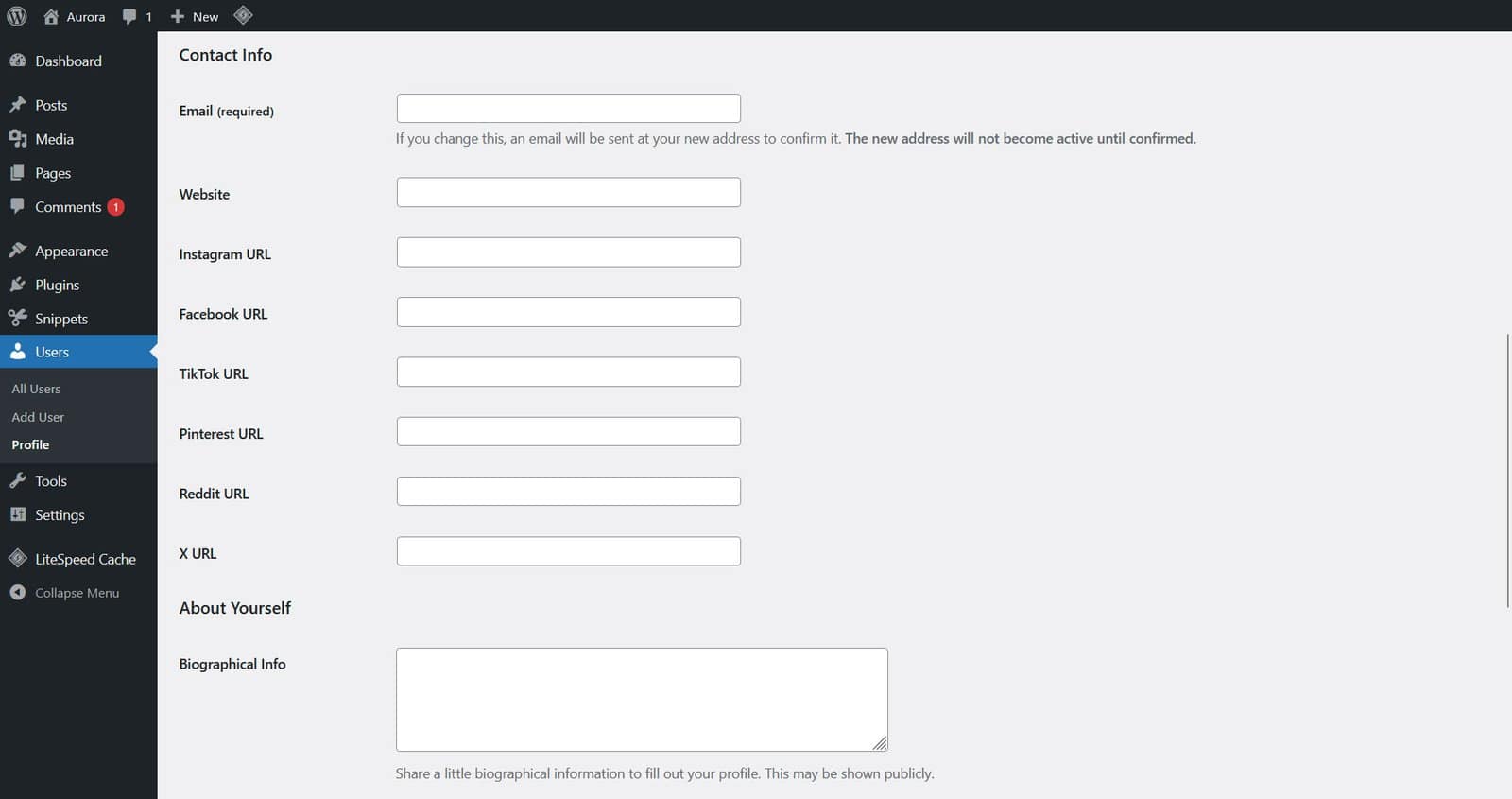
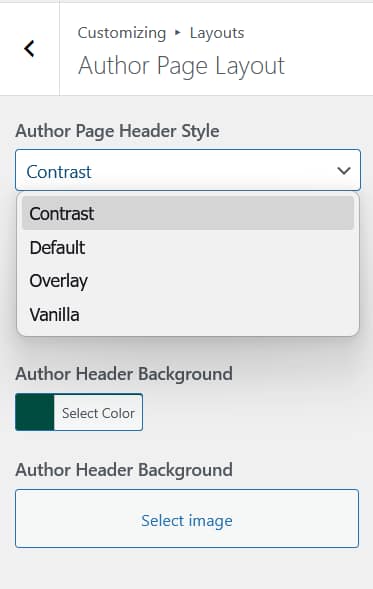
Controls the author profile page layout. Select from 4 designs that vary in banner style, avatar treatment, and how the author block is arranged. Posts are displayed below the author block using the archive design and post per page settings configured under Archive Layout.
Search Results Page
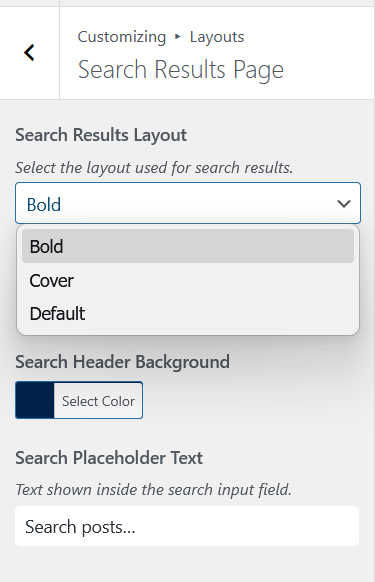
Controls the search results page. Select from 3 designs that vary in hero banner style and search form placement. Post results are displayed here matching the archive design and post per page settings you make in Archive Layout.
404 Page Style
Controls your 404 error page:
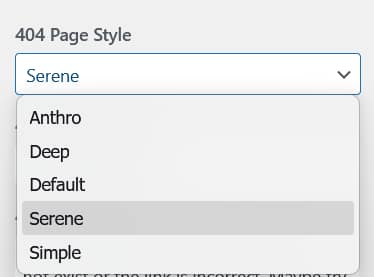
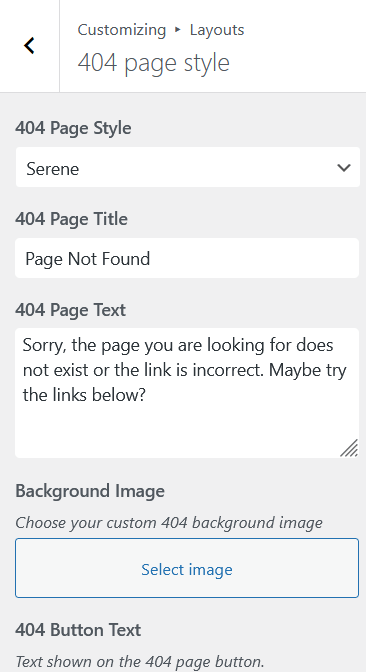
- 404 Page Style — select from 5 designs
- Title and body text — set custom messaging for the error page
- CTA Button — add a button with a custom label and URL
- Background Image — set a custom background for layouts that support it
- 404 Menu — assign a navigation menu to the 404 page
Footer Layout
Controls everything about your site footer:
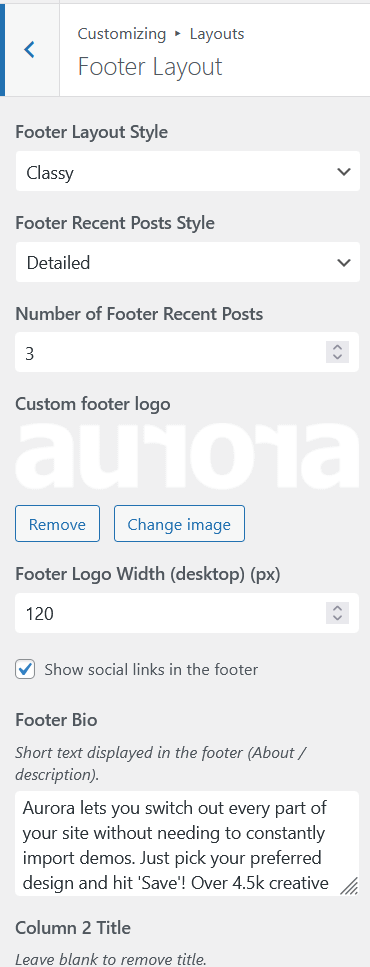
- Footer Layout Style — select from 5 designs
- Footer bio — the description text displayed in the first footer column
- Footer column titles — custom headings for menu columns 1, 2, and 3
- Recent posts style — for layouts that show recent posts in column 4.
- Footer socials — toggle social icons in the footer (header socials display automatically on layouts that include them, with no separate toggle)
- Logo — upload a separate footer logo and set independent width values for desktop, tablet, and mobile
- Copyright text — custom copyright line in the footer bottom bar
- Footer JavaScript — add custom JS to inject before the closing
</body>tag
Colors
Controls every color value used across the theme. All values output as CSS custom properties and apply in real time. See Aurora Color System for the full reference.
Typography
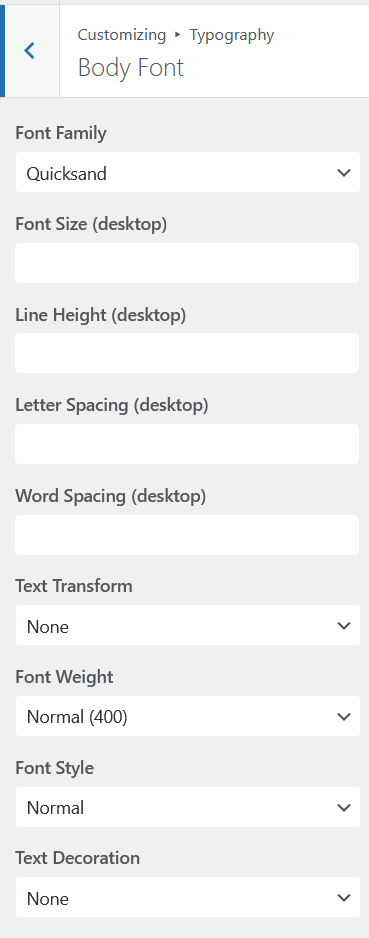
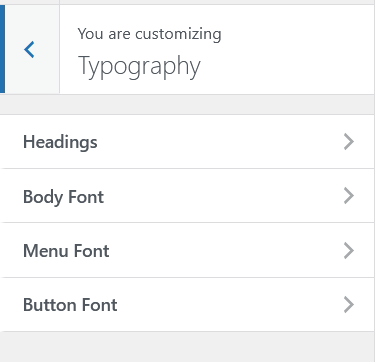
Controls fonts for four independent categories: Body, Headings, Menu, and Buttons. Each category supports family, size (desktop/tablet/mobile), weight, style, line height, letter spacing, word spacing, transform, and decoration. See Aurora Typography System for the full reference.
Socials & Contact
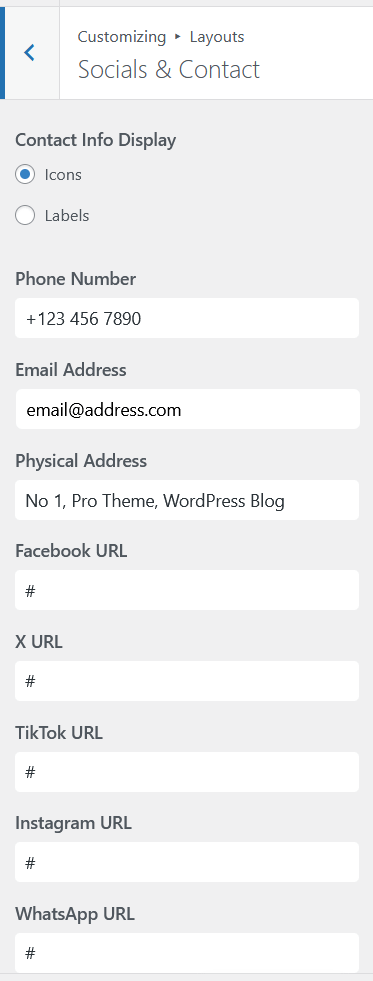
Central location for all social media URLs and contact information. Enter these once and Aurora displays them wherever the active layout calls for them in your header or footer blocks.
General Settings
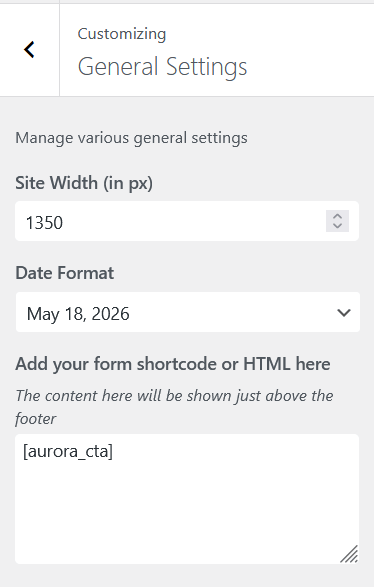
- Site width — sets the maximum content container width in pixels. Default is 1300px
- Date Format — choose from preset formats or enter a custom PHP date string
- Newsletter — paste any newsletter embed code or shortcode here. Aurora renders it as a full-width section above every footer on every page