

A staging site is a private copy of your WordPress installation where you can test layouts, settings, and customizations without affecting what your visitors see. It is one of the safest ways to explore Aurora before committing to changes on your live site.
Why Use a Staging Site
Aurora’s Customizer lets you preview changes before publishing, but some decisions (switching your homepage layout, changing your header design, or restructuring your content sections) are easier to evaluate on a full working copy of your site with your real posts and pages in place.
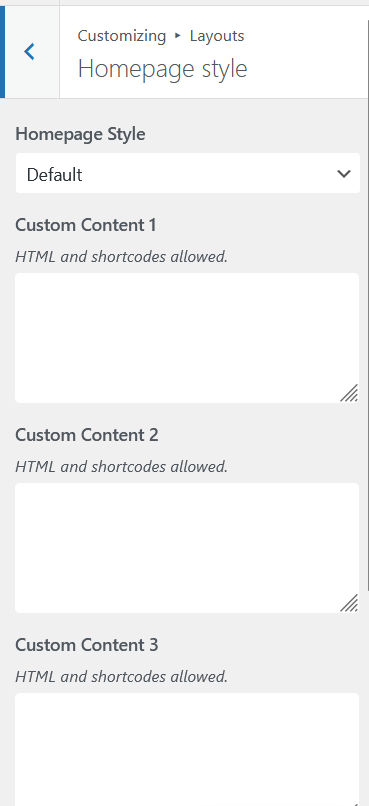
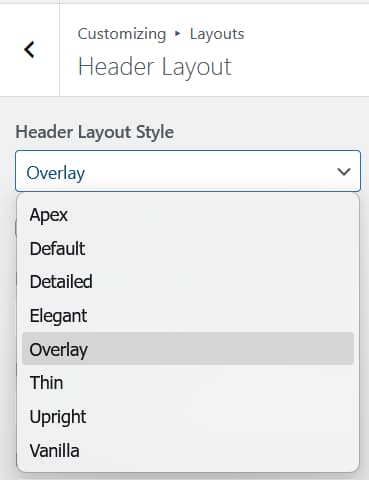
A staging site also gives you a safe place to test plugin updates, WordPress core updates, and child theme customizations before they reach your live audience.
How to Set Up a Staging Site
Most managed WordPress hosts include a one-click staging tool in their dashboard. The steps vary by host but generally follow this pattern:
- Log in to your hosting control panel.
- Find the staging or cloning tool, often labelled “Staging”, “Clone Site”, or “Test Site”.
- Create a copy of your live site. The host provisions a separate environment with a subdomain (e.g.
staging.yoursite.com). - Log in to the staging WordPress admin and make your changes freely.
- When satisfied, push the staging site back to live using your host’s merge or push tool.
Common hosts with built-in staging: WP Engine, Kinsta, Flywheel, SiteGround, Cloudways, and Pressable.
If Your Host Does Not Offer Staging
You can create a staging environment manually using a plugin such as WP Staging or Duplicator. These plugins clone your site to a subdirectory or subdomain and let you work there independently.
We Can Set One Up for You
If you would rather not handle the technical setup, we offer free staging site provisioning for Aurora customers. After purchasing, get in touch and we will set up a staging environment on your content so you can explore every layout and feature before going live.
Testing Aurora on Staging
Once your staging site is ready, the main things worth testing before going live:
- Switch through header, archive, and single post layouts in the Customizer to find combinations you like
- Check how your content looks in each layout on mobile
- Set up your menus, logo, colors, and fonts
- Test any plugins you plan to use alongside Aurora
- Confirm your 404, search, and author pages look correct