

Link and button colors are among the most visible brand elements on your site. Aurora lets you control both from the Customizer with live preview. These settings are part of Aurora’s color system. Every value is stored as a CSS custom property and applies site-wide instantly.
Link Color
- Go to Appearance → Customize → Colors.
- Find Link Color.
- Click the swatch and choose your color.
This applies to all hyperlinks in post content, page content, and theme UI elements, including archive category labels, author names, and breadcrumb links.
Link Hover Color
Set the color links change to when hovered under Colors → Link Hover Color. If left unset, links do not change color on hover.
Button Colors
Buttons in Aurora include: read-more links on archives, share buttons on posts, and the Load More button on archives. They all share the same global button color settings. Header CTA buttons are an exception. They use the header menu colors instead, since they sit inside the header bar. See How to Add CTA Buttons to the Header for details.
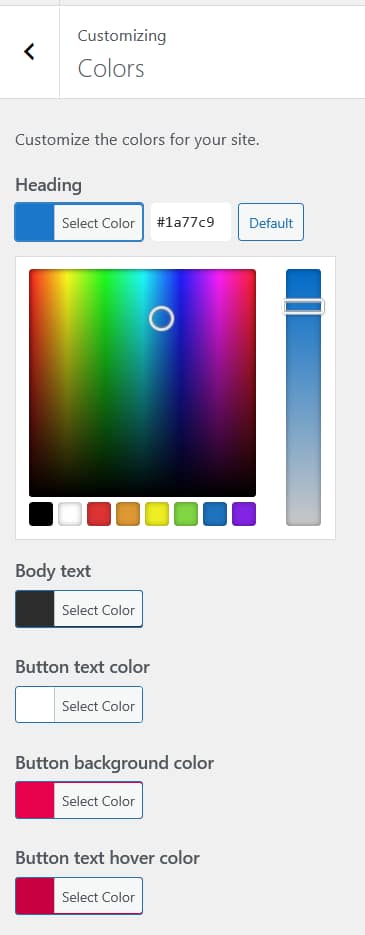
Button Background Color
- Go to Customize → Colors → Button Background Color.
- Set the fill color for all buttons.
Button Text Color
- Go to Customize → Colors → Button Text Color.
- Set the text color displayed on buttons.
Button Hover States
Set what happens when a button is hovered under:
- Button Hover Background: the fill color changes to this on hover
- Button Hover Text Color: the text changes to this on hover
Tips
- Use your primary brand color for the link color. It becomes the visual anchor across your entire site
- Set the button background to your primary brand color and the hover state to a slightly darker shade for a polished feel
- Make sure button text color has sufficient contrast against the button background. White on dark colors and dark on light colors both work well
- All changes preview live. Adjust both states together before publishing
- For fine-grained overrides on specific elements, use CSS variables in Additional CSS