

Aurora includes 10 single post layouts. They differ in how the featured image and post header are arranged at the top of the post. You can switch layouts at any time from the Customizer.
How to Switch
- Go to Appearance → Customize.
- Open Layouts → Single Post Layout.
- Click Single Post Layout.
- Select a layout from the dropdown.
- Navigate to a post in the preview panel to see the layout applied to real content.
- Click Publish when satisfied.
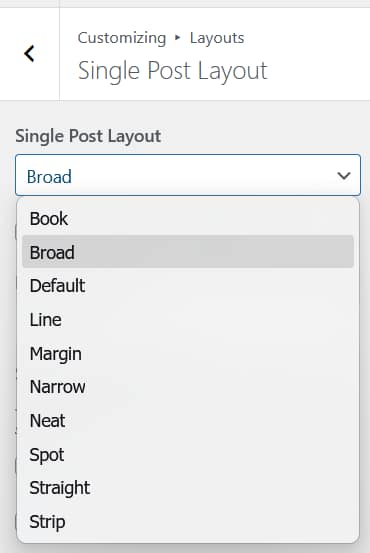
The 10 Single Post Layouts
See the full single post layouts comparison for detailed structure and screenshots.
Default
Breadcrumb, full-width featured image, then category, title, excerpt, and meta below the image.
Straight
Full-width image, category, title, tags, meta, and share buttons before the post content begins.
Book
Split header. Category, title, author, and date on a light background to the left. Featured image on the right.
Strip
Full-width image with category, title, excerpt, and meta all overlaid on it, left-aligned.
Spot
Full-width image with a floating white card on the left containing the post header.
Neat
Breadcrumb, title, italic excerpt, image, and meta below the image. No header overlay.
Narrow
Default structure but in a narrower content column for a more deliberate reading width.
Margin
Category, title, and meta centered above the image. Italic excerpt centered below the image.
Line
Full-width image with the post header pulled up into the bottom of the image, overlapping it.
Broad
Full-width image with the category, title, and meta centered over the image in white text.
What All Single Post Layouts Include
- Breadcrumb navigation (where shown by the layout)
- Post categories
- Post title
- Post excerpt (where shown by the layout)
- Meta block: author name, publish date, comment count, and reading time estimate
- Post content
- Post tags
- Social share buttons (configurable per platform)
- Previous and next post navigation
- Author bio with avatar, name, description, and social links
- Related posts (queried by category)
- Comments section
Sidebar
Several layouts include an optional sidebar. The sidebar can be toggled on or off under Layouts → Single Post Layout → Show Sidebar. Layouts that do not support a sidebar ignore this toggle.
Additional Settings
Beyond the layout selection, the following are configurable under Layouts → Single Post Layout:
- Drop Cap: apply a styled first letter to post content. Options: None, Bold, Casual, Pretty
- Share Buttons: enable or disable each of the 10 supported platforms individually: Facebook, Twitter, Reddit, Tumblr, Telegram, WhatsApp, Email, Messenger, SMS, Copy Link
Per-Post Overrides with Nova
The layout selection above applies globally to all single posts. To use a different layout on a specific post, the Nova plugin adds per-post override controls directly in the post editor sidebar. Changes made there apply to that post only and take precedence over the global Customizer setting.