

Aurora includes 5 homepage layouts. Each is a different arrangement of post sections, giving your homepage a distinct editorial structure. You can switch between them at any time without affecting your content.
How to Switch
- Go to Appearance → Customize.
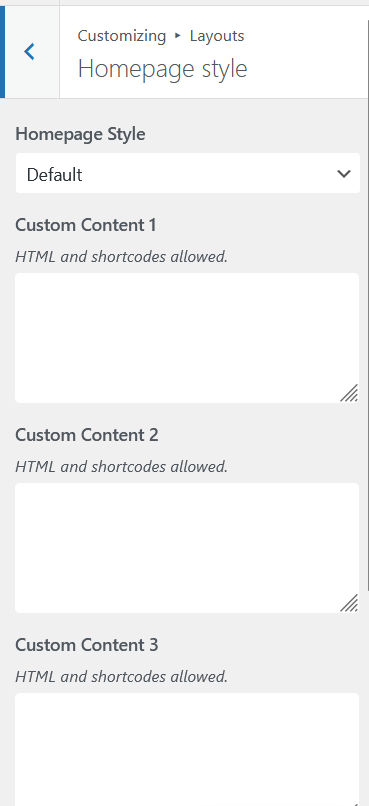
- Open Layouts → Homepage Style.
- Click Homepage Layout.
- Select a layout from the dropdown and watch the preview update.
- Click Publish when satisfied.
The 5 Homepage Layouts
Default
Eight sections. Opens with a single full-width Overlay post, then pairs Magazine and Genteel side-by-side, then steps through Plain, Embed, Bold, a full-width Poster strip, and closes with a Sweet section. Sweet is unique to this layout.
Crisp
Nine sections, the most of any layout. Opens with a Card Grid slider (previous/next buttons), then a Magazine block. A dual-column block pairs Overlay with Embed. Below that: a Compress row, a two-column newspaper block pairing Bold with Plain, a full-width Poster strip, and a Genteel section.
Laid
Seven sections. Opens with a single full-width Overlay post, then a Card Grid section. A Magazine block and Bold panel follow. A swap block pairs Plain with Compress. Closes with a Poster strip.
Rich
Seven sections (tied with Laid for fewest). Opens with an Embed slider (previous/next buttons). A two-column block pairs Magazine with Card Grid. Then a Genteel highlights section, a Bold panel, a Poster row, and a Detail section. Detail is unique to this layout.
Bold
Eight sections. Opens with a Card Grid hero followed by a Magazine block. Lower sections include an Embed strip, a Plain list, a paired Compress and Overlay block, a Poster row, and a Genteel section.
See all five layouts live on the Aurora demo site, with each homepage style on its own demo page.
Configuring Homepage Sections
Each homepage layout contains multiple post sections. Each section is independently configurable:
- Go to Customize → Layouts → Homepage Style.
- Select a section to configure.
- Set the Source: choose a category, a tag, handpicked posts, or all recent posts. See how to set up post sources for the full options.
- The section’s presentation style is determined by the active homepage layout (each layout uses a different sequence of styles like Overlay, Card Grid, Magazine, Bold, Poster, Compress, Embed, Plain, Genteel, Detail, Sweet). You configure each section’s source and post count, not its visual style.
- Optionally exclude specific posts from appearing in the section.
- To hide a section entirely, set its source to None.
Custom Content Areas
Every homepage layout includes 4 custom content slots positioned between post sections. These accept any HTML or shortcode, making them useful for ad placements, email signup forms, promotional banners, or any custom block you want to inject into the homepage flow.
To use them, go to Customize → Layouts → Homepage Style → Custom Content Areas and paste your HTML or shortcode into the relevant slot.
Setting a Static Homepage
Aurora’s homepage layouts work when WordPress is set to show your latest posts on the front page. If you have configured a static front page under Settings → Reading, Aurora’s homepage layout selection will not apply. WordPress will instead show the content of the page you designated.
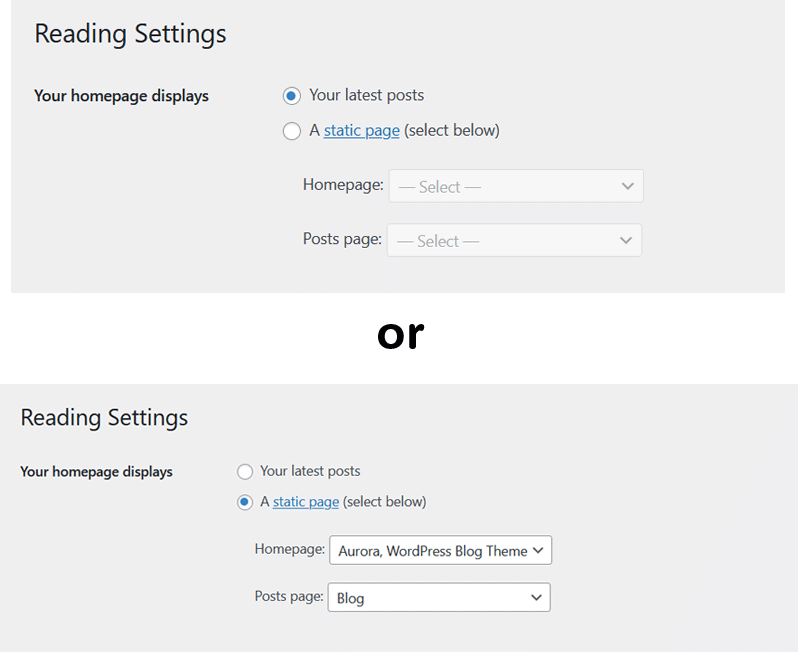
To use Aurora’s homepage layouts, go to Settings → Reading and set Your homepage displays to Your latest posts.