

Last updated:
Aurora includes built-in social share buttons on single posts. No plugin required. You enable the platforms you want from the Customizer and they appear at the bottom of every post.
How to Configure Share Buttons
- Go to Appearance → Customize.
- Open Single Post Settings.
- Find the Share Buttons section.
- Toggle each platform on or off.
- Click Publish.
Supported Platforms
Share buttons are available for all social networks Aurora supports on the share panel. The full list of toggleable platforms:
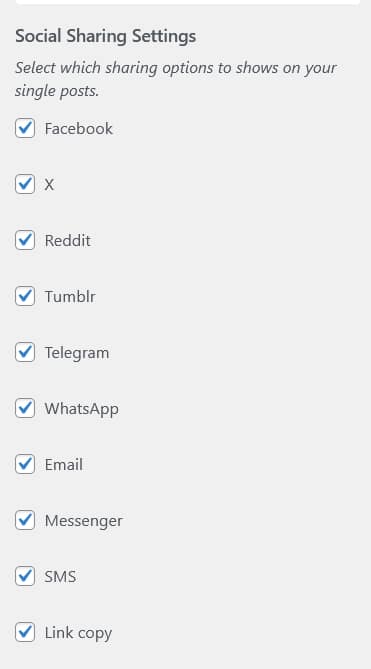
| Platform | Share Action |
|---|---|
| Opens Facebook share dialog with the post URL | |
| Twitter / X | Opens a pre-filled tweet with the post title and URL |
| Opens Reddit submit page with the post URL | |
| Tumblr | Opens Tumblr reblog dialog |
| Telegram | Opens Telegram share with the post URL and title |
| Opens WhatsApp share with the post URL | |
| Opens the default email client with subject and body pre-filled | |
| Messenger | Opens Facebook Messenger share |
| SMS | Opens the device SMS app with the post URL pre-filled |
| Copy Link | Copies the post URL to the clipboard |
Where Share Buttons Appear
Share buttons appear near the bottom of single post pages, below the post content and above the author bio block. Their exact position varies slightly between single post layouts, but they are always within the main content column.
Enabling Only the Most Relevant Platforms
Not every platform is worth enabling for every blog. A few guidelines:
- Enable Facebook, Twitter, and Copy Link at minimum. These cover the broadest sharing behavior
- Add WhatsApp if a significant portion of your audience is mobile-first
- Add Tumblr for visual content blogs: lifestyle, food, travel, fashion
- Add Reddit for tech, gaming, finance, or niche content where Reddit communities are active
- Skip platforms your audience does not use. Fewer buttons means higher click-through on the ones that remain