

Aurora includes 13 archive layouts. These apply to every archive page on your site: category pages, tag pages, date archives, search results, and author pages. You can switch layouts at any time from the Customizer without affecting your content.
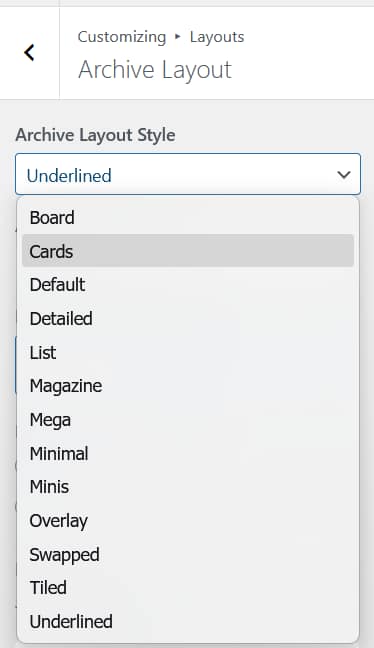
How to Switch
- Go to Appearance → Customize.
- Open Layouts → Archive Layout.
- Click Archive Layout.
- Select a layout from the dropdown.
- Navigate to a category page in the preview panel to see it applied to real posts.
- Click Publish when satisfied.
The 13 Archive Layouts
See the full archive layouts comparison for screenshots and details on each design.
Default
A 3-column grid. Image, category badge, title, excerpt, author, date.
Cards
A 3-column grid with drop-shadowed cards. Image, category, date, title. No excerpt.
Minimal
A 3-column grid. Image with badge, title, author, date. No excerpt.
Detailed
A 3-column grid with a “View post” button. Image, badge, author, date, title, excerpt.
Board
A 3-column grid with bordered cards. Date and category at the top, image, then title.
Overlay
A 3-column grid where the category, title, and excerpt are overlaid directly on the featured image.
Minis
2 posts per row on desktop, 1 per row on tablet. Square thumbnail on the left, content on the right.
List
Single-column full-width rows. Large image on the left, category, date, title, excerpt, and tags on the right.
Underlined
Single-column full-width rows. Large date number on the left, thumbnail center-left, content on the right.
Swapped
Full-width alternating rows. Image on one side, content on the other with a fixed dark background.
Tiled
A 4-column grid where each post occupies two cells (image + content) in an alternating checkerboard pattern.
Magazine
Single-column full-width layout. Small icon, centered title, meta, large image, excerpt, “Continue reading” link.
Mega
Single-column full-width layout. Large image, category badge, all-caps title, excerpt, meta, “Read More” link.
Masonry
Six of the 13 archive layouts support masonry, a grid where cards stack at varying heights rather than being forced into uniform rows. Masonry is available on Default, Board, Cards, Detailed, Overlay, and Minimal. To enable it:
- Go to Layouts → Archive Layout → Enable Masonry Layout.
- Toggle masonry on.
The masonry toggle only affects layouts that support it. If the active layout does not support masonry, the toggle has no effect.
Browse the demo site archives to see layouts in action.
Pagination Style
Aurora supports two pagination styles on archive pages:
- Numbered pagination: standard page numbers at the bottom of the archive. Visitors click to move between pages.
- Load More button: an AJAX button that appends the next batch of posts to the current page without a reload.
Switch between them under Layouts → Archive Layout → Pagination Style.
Sidebar
All 13 archive layouts support an optional sidebar. Toggle it on or off under Layouts → Archive Layout → Show Sidebar. When enabled, the sidebar pulls from your assigned sidebar widgets in Appearance → Widgets.

Archive Banner
By default, Aurora displays a banner above the post grid on archive pages showing the category name, tag name, or date range being viewed. To disable it, go to Layouts → Archive Layout → Show Archive Banner and toggle it off.
Posts Per Page
The number of posts shown per archive page is controlled by Aurora’s own setting under Customize → Layouts → Archive Layout → Posts Per Page. Set it to 0 to show all posts at once with no pagination. This overrides WordPress’s global reading setting for archive pages.
Per-Category Overrides with Nova
The settings above apply globally to all archive pages. To use a different layout on a specific category or tag, the Nova plugin adds override controls to the category and tag edit screens in WP Admin. Overrides set there apply to that term only and take precedence over the global settings.