

Aurora’s Customizer preview updates your site’s appearance live as you make changes, without publishing anything. This lets you experiment freely before committing to a design.
What Updates in Real Time
The following changes reflect instantly in the preview panel on the right side of the Customizer:
- Switching any layout: header, footer, homepage, single post, archive, author, search, or 404
- Changing any color value
- Changing any typography setting: font family, size, weight, style, or spacing
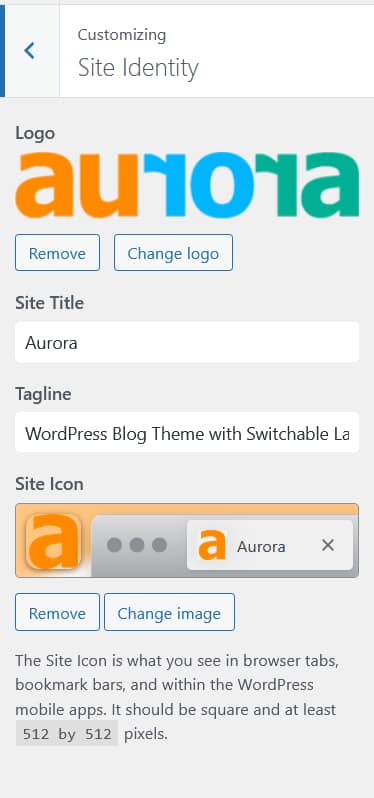
- Uploading or changing your logo
- Toggling features on or off: sticky header, masonry, sidebar, share buttons, drop cap
- Entering or editing text fields: bio, copyright, 404 title and message
- Changing site width
How to Use the Preview Effectively
The preview panel shows a live rendering of your actual site. You can click links within the preview to navigate to different page types or open another settings.
Use the device toggle icons at the bottom of the Customizer sidebar to switch the preview between desktop, tablet, and mobile views. This is especially useful when setting responsive font sizes and logo widths.
What Does Not Update Until Published
A small number of settings require a full publish before they appear correctly:
- Menus: assigning a menu to a location or updating a menu item may take effect after publishing
- Custom JavaScript: scripts added to the header or footer JS fields run after publishing
- Newsletter embed code: the embed preview may not render interactively in the preview panel
Changes Are Not Live Until You Publish
Everything you change in the Customizer is a draft until you click Publish. Visitors to your site see the last published version while you are making adjustments. You can make as many changes as you want (switching layouts, trying different colors, adjusting fonts) and publish them all at once when you are satisfied.
If you want to discard your changes and return to the last published state, click the X in the top left of the Customizer to close without publishing.
Previewing a Specific Page
By default, the Customizer preview opens on your homepage. To preview a different page type, such as a single post or category archive, navigate to that page on your site first, then open the Customizer. The preview will open on the page you were viewing.
Alternatively, use the preview panel’s navigation directly: click any link within the preview to move to a different part of your site without closing the Customizer.
Ready to publish your changes? See Saving and Publishing Customizer Changes to understand drafts and scheduling.