

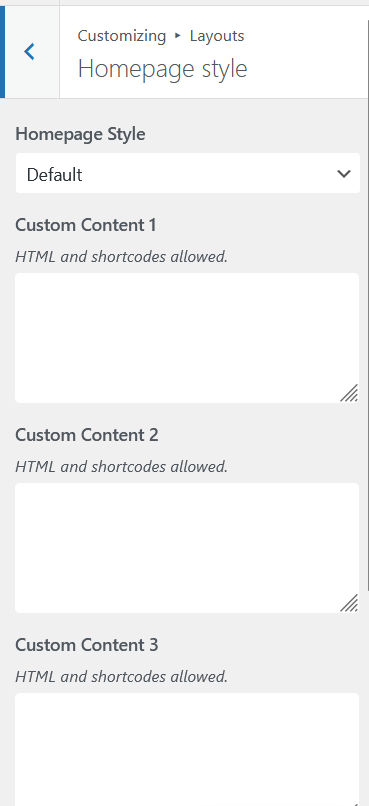
Aurora ships with five homepage layouts, each switchable from Appearance → Customize → Layouts → Homepage Style. Each layout is a sequence of post sections (each section displays posts in a specific presentation style and pulls from a source you choose) interleaved with four optional custom content slots for HTML or shortcodes. The fastest way to compare them is to visit the demo links below.
Default
Leads with a single full-width Overlay post (1 post max). Below that, a Magazine block (up to 8 posts) sits next to a Genteel block (up to 10 posts). The page then steps through a Plain list (12), an Embed section (12), a Bold section (12), a full-width Poster strip (6), and closes with a Sweet section (12). Eight sections in total. Sweet is unique to this layout.
Bold
Opens with a Card Grid hero (up to 5 posts) followed by a Magazine block (10). Lower sections include an Embed strip (3), a Plain list (9), a paired list (Compress with 2 posts beside Overlay with 16), a Poster row (6), and a Genteel section (16). Eight sections in total. The most content-dense layout for Overlay and Genteel sections.
Crisp
The only horizontally varied layout. Leads with a Card Grid slider (with previous/next buttons, up to 6 posts), followed by a Magazine block (12). A dual-column block pairs Overlay (8) with Embed (6). A Compress row (6) follows. A two-column newspaper block pairs Bold (5) with Plain (7). The page closes with a full-width Poster strip (6) and a Genteel section (12). Nine sections in total, the most of any layout.
Laid
Leads with a single full-width Overlay post (1), followed by a Card Grid section (10). A Magazine block (12) and Bold panel (8) follow. A swap block pairs Plain (12) with Compress (5). The page closes with a Poster strip (12). Seven sections in total, tied with Rich as the most spacious layout.
Rich
Opens with an Embed slider (with previous/next buttons, up to 7 posts). A two-column block pairs Magazine (5) with Card Grid (4). A Genteel highlights section (12) follows. Lower sections include a Bold panel (12), a Poster row (6), and a Detail section (12). Seven sections in total. Detail is unique to this layout.
Section Counts at a Glance
| Layout | Sections | Hero | Unique sections |
|---|---|---|---|
| Default | 8 | Single Overlay post | Sweet |
| Bold | 8 | Card Grid (5) | — |
| Crisp | 9 | Card Grid slider (6) | — |
| Laid | 7 | Single Overlay post | — |
| Rich | 7 | Embed slider (7) | Detail |
Shared Features
All five layouts include:
- Four custom content slots (Custom Content 1 through 4) interleaved between sections for ads, banners, signup forms, or any HTML/shortcodes
- Configurable post source per section: Category, Tag, Specific Posts (handpicked), or None to hide the section
- Configurable post count per section (up to the section’s maximum)
- Per-section exclusion field to keep specific posts from appearing
- Your global color scheme, fonts, and site width carry through every section automatically
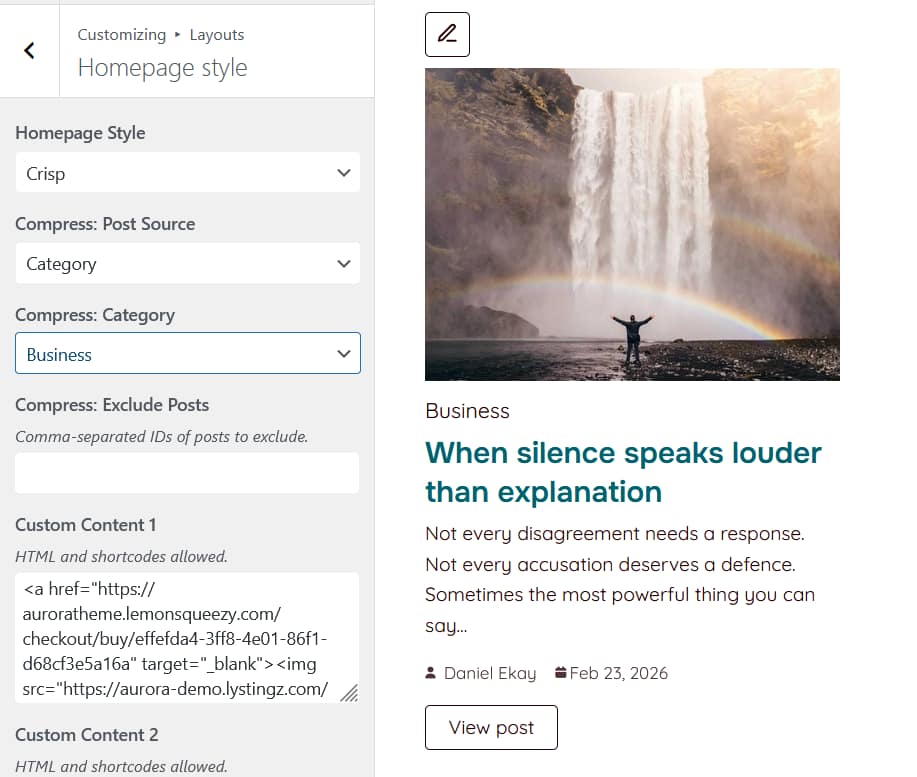
To switch layouts, go to Appearance → Customize → Layouts → Homepage Style and select from the dropdown. Each section can be configured by clicking the edit pencil that appears above it in the Customizer preview. See How to Set Up Posts in Homepage Sections for the per-section settings.
Setting a Static Homepage
These layouts apply only when WordPress is set to show your latest posts on the front page. If you have configured a static page under Settings → Reading, Aurora’s homepage layout selection has no effect. To use Aurora’s homepage layouts, set Your homepage displays to Your latest posts.