

Aurora gives you independent background color controls for the header and footer. Each area can be a different color, and the header top bar (on layouts that have one) has its own setting too. These settings are part of Aurora’s broader color system. All color values are output as CSS custom properties and apply site-wide instantly.
Header Background Color
- Go to Appearance → Customize.
- Open Colors.
- Find Header Background Color.
- Click the color swatch and choose a color.
- The preview updates immediately.
- Click Publish when satisfied.
This controls the background of the main header bar across all horizontal layouts. Vertical headers (Upright and Thin) use this same color for their side panel background.
Top Bar Background Color
The Apex and Detailed header layouts use a separate Top Bar Background color for their top bar:
- Go to Customize → Colors.
- Find Top Bar Background.
- Set your preferred color.
Overlay also has a top bar but it uses the regular Header Background Color instead. Elegant’s two bars are both transparent and pick up the page background; only its pill-shaped nav uses the header colors. If your active header layout does not have a top bar, this setting has no visible effect.
Footer Background Color
- Go to Customize → Colors.
- Find Footer Background Color.
- Set your preferred color.
This applies to the main footer widget area. The bottom bar below it uses the same background by default.
Matching Text and Icon Colors
When you change the header or footer background to a dark color, you may need to update the text and icon colors to maintain readability:
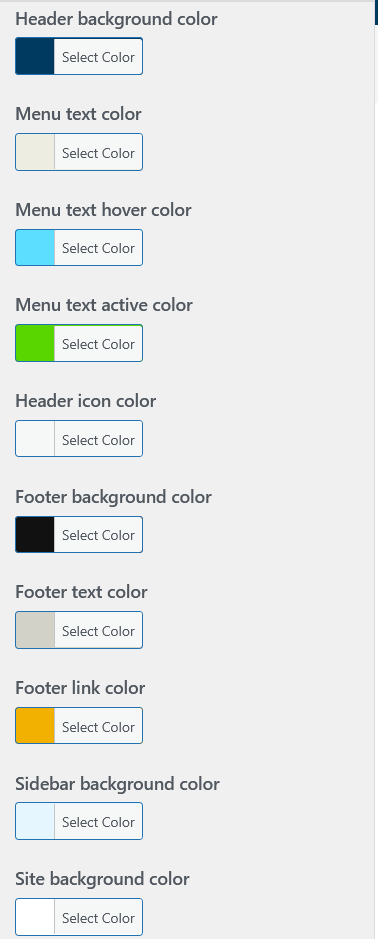
- Menu text, hover, and active colors: under Customize → Colors → Menu Text Color
- Header icon color: under Customize → Colors → Header Icon Color
- Footer text and link colors: under Customize → Colors → Footer Text Color and Footer Link Color
All changes preview live. Adjust the background and text colors together until you are satisfied, then publish once. For a full dark site look, see dark color scheme.