Aurora includes 5 footer layouts. Three are 4-column variants where the fourth column holds different content (menu, recent posts, contact information), one is a centered single-column layout, and one strips the widget area entirely.
How to Switch
- Go to Appearance → Customize.
- Open Layouts → Footer Layout.
- Click Footer Layout.
- Select a layout from the dropdown.
- Click Publish when satisfied.
The 5 Footer Layouts
Default
Four columns: a bio column on the left, then three navigation menu columns. The fourth column is a menu. Best for sites that want to surface lots of links in the footer: category pages, tag archives, legal pages, or secondary navigation.
Classy
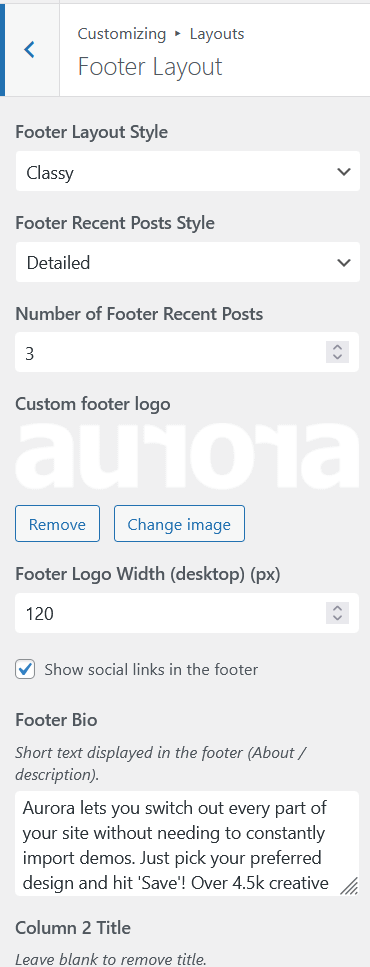
Three columns of navigation menus plus a fourth column showing recent posts with thumbnails. Good for blogs that want to keep the footer active with fresh content. The recent posts block supports three sub-styles: Default, Detailed, and Simple, configurable under Layouts → Footer Layout → Recent Posts Style.
Segment
Three menu columns plus a fourth column showing contact information: phone, email, and address as configured under Socials & Contact. Suited to professional blogs, consultants, or anyone who wants contact details in the footer.
Stripped
No widget area at all. A single thin bar with copyright on the left and social media icons on the right. The most minimal footer option.
Simple
A fully centered single-column layout with logo, bio, social icons, footer menu, and copyright all stacked vertically and centered. Best for personal blogs and portfolios where a lightweight footer is preferred.
See them on the demo site.
What All Footer Layouts Include
- Logo (or site title fallback)
- Bio text: set under Layouts → Footer Layout → Footer Bio
- Social icons: toggle on or off under Layouts → Footer Layout → Show social links in the footer
- Up to 3 menu columns with configurable column titles
- Bottom bar with copyright text and an optional footer bottom menu
Footer Logo Width
The footer logo can be sized independently from the header logo. Go to Layouts → Footer Layout → Footer Logo Width to set pixel values for desktop, tablet, and mobile separately.
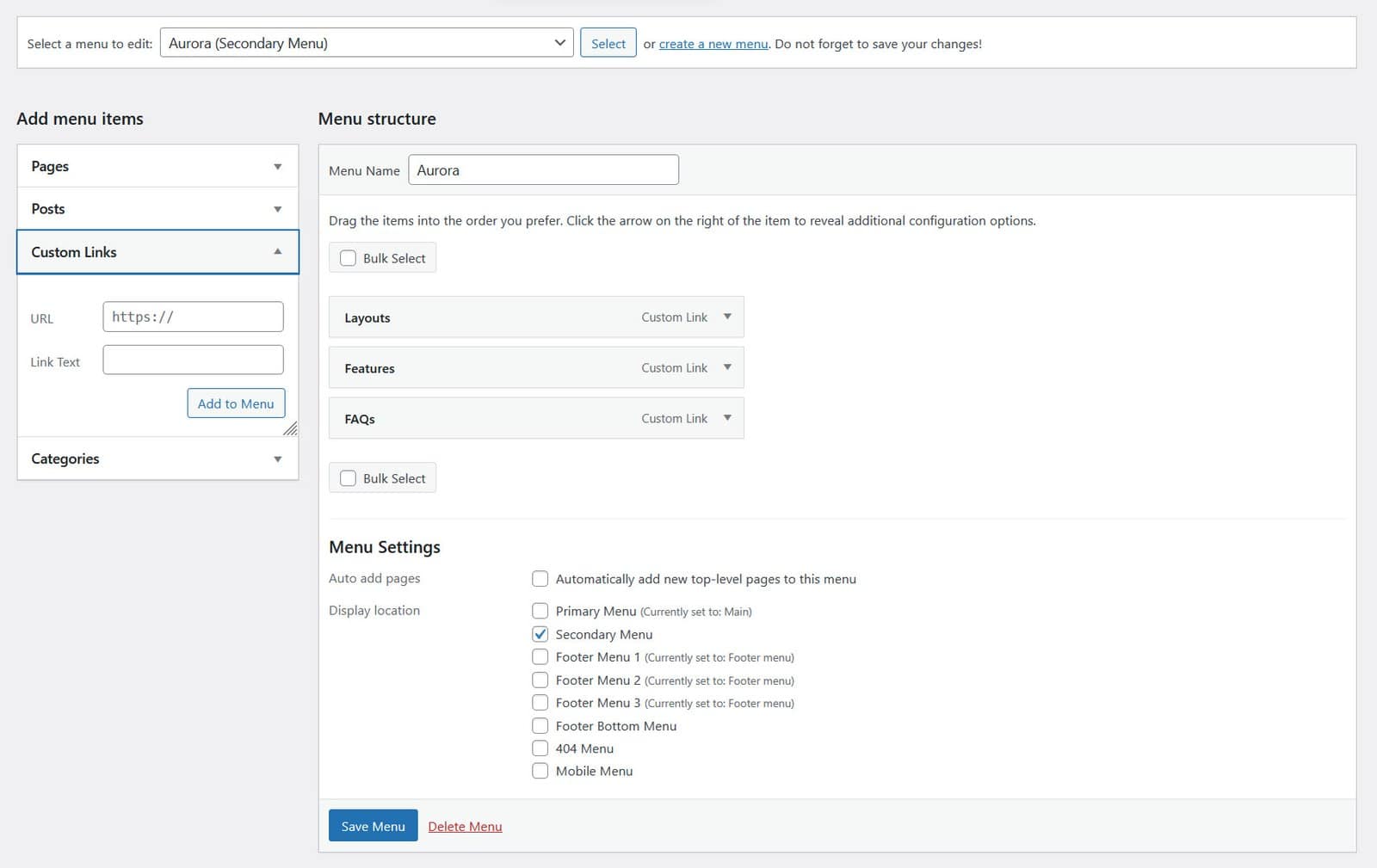
Footer Menus
Aurora registers three footer menus locations: Footer Menu 1, Footer Menu 2, and Footer Menu 3, one per column. Assign menus to these locations under Appearance → Menus. A fourth location, Footer Bottom Menu, controls the link row in the bottom bar.