

A child theme lets you add custom code and styles on top of Aurora without touching the parent theme files. When Aurora updates, your changes stay intact and nothing gets overwritten.
Aurora has an official child theme you can download and use as your starting point.
Download the Child Theme
The Aurora child theme is available as a free download from the same place you got Aurora Pro:
You will receive a .zip file. Do not unzip it. WordPress installs themes directly from the zip.
How to Install It
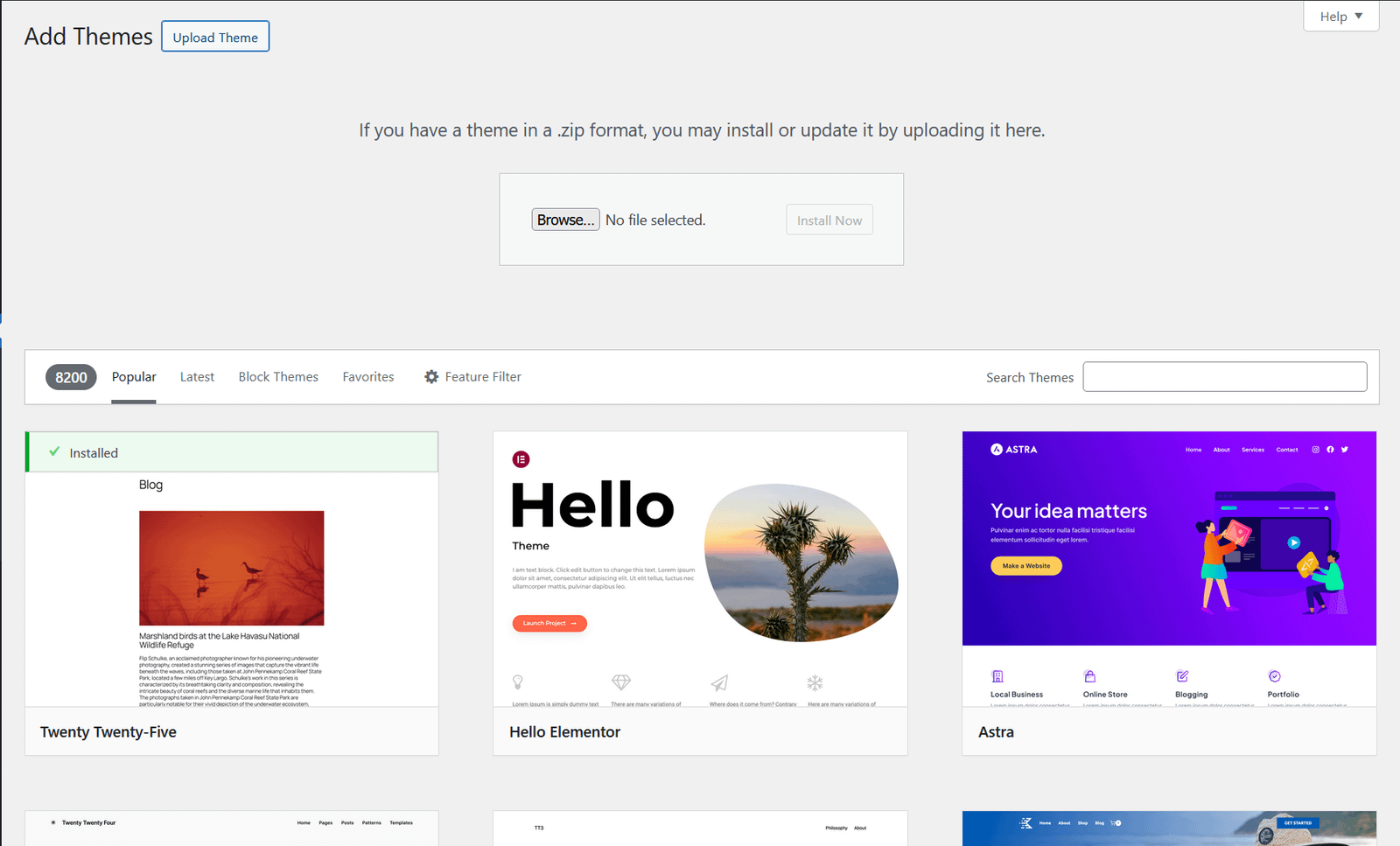
- Go to Appearance → Themes → Add New.
- Click Upload Theme.
- Choose the
aurora-child.zipfile and click Install Now. - Once installed, click Activate.
Aurora Pro must already be installed for the child theme to work. The child theme does not replace it. Both themes need to be present.
What the Child Theme Includes
The child theme ships with just two files:
- style.css: declares the child theme and its relationship to Aurora Pro. Add your custom CSS here.
- functions.php: enqueues the parent stylesheet and is ready for any custom PHP you want to add.
Everything else: templates, Customizer settings, layouts, is inherited from Aurora Pro. You only need to add files when you want to override something specific.
Migrating Customizer Settings from the Parent Theme
If you have been using Aurora Pro directly and have already configured your Customizer settings, colors, typography, header layout, and so on, those settings are stored against the parent theme. Switching to the child theme will appear to reset everything because the child theme starts with a blank slate.
The snippet below copies all your existing Aurora Pro settings to the child theme in one go. Run it once with the child theme active, then delete it.
Paste the snippet into Code Snippets (or any snippet plugin), activate it, load any page on your site, then deactivate and delete it.
add_action( 'admin_init', function () {
    $parent_mods = get_option( 'theme_mods_aurora-pro', [] );

    if ( empty( $parent_mods ) ) {
        return;
    }

    $child_mods = get_option( 'theme_mods_aurora-child', [] );
    $merged     = array_merge( $parent_mods, $child_mods );

    update_option( 'theme_mods_aurora-child', $merged );
} );
This merges the parent settings into the child theme without overwriting anything the child already has. Once it runs, your colors, fonts, and layout choices will appear exactly as they did before.
Adding Custom Styles
Open style.css in the child theme folder and add your CSS below the theme header comment. These styles load after Aurora’s and will override anything with the same selector.
/* Example: increase body font size */
body {
    font-size: 17px;
}
For simpler overrides that don’t require a child theme at all, Aurora’s CSS variables are often the faster option. See How to Use Aurora’s CSS Variables.