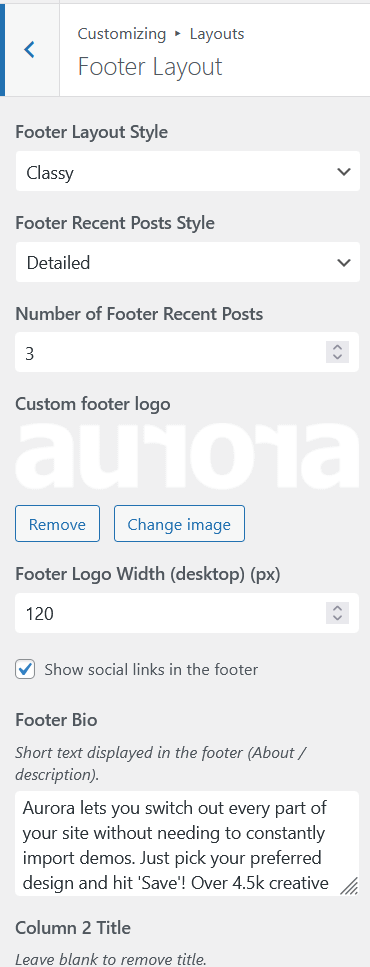
Aurora’s footer is built from a set of content blocks that each layout arranges differently. All settings are in Appearance → Customize → Layouts → Footer Layout. You can see them all on the Aurora demo site.
Logo
Upload a footer logo, separate from the header logo. Set the display width independently for desktop, tablet, and mobile. See How to Control Footer Logo Width.
Bio
A short text description of your site or brand, displayed alongside the footer logo. Enter it in the Footer Bio field. Leave it empty and nothing renders in its place. See How to Add a Bio and Logo to Your Footer.
Navigation Menus
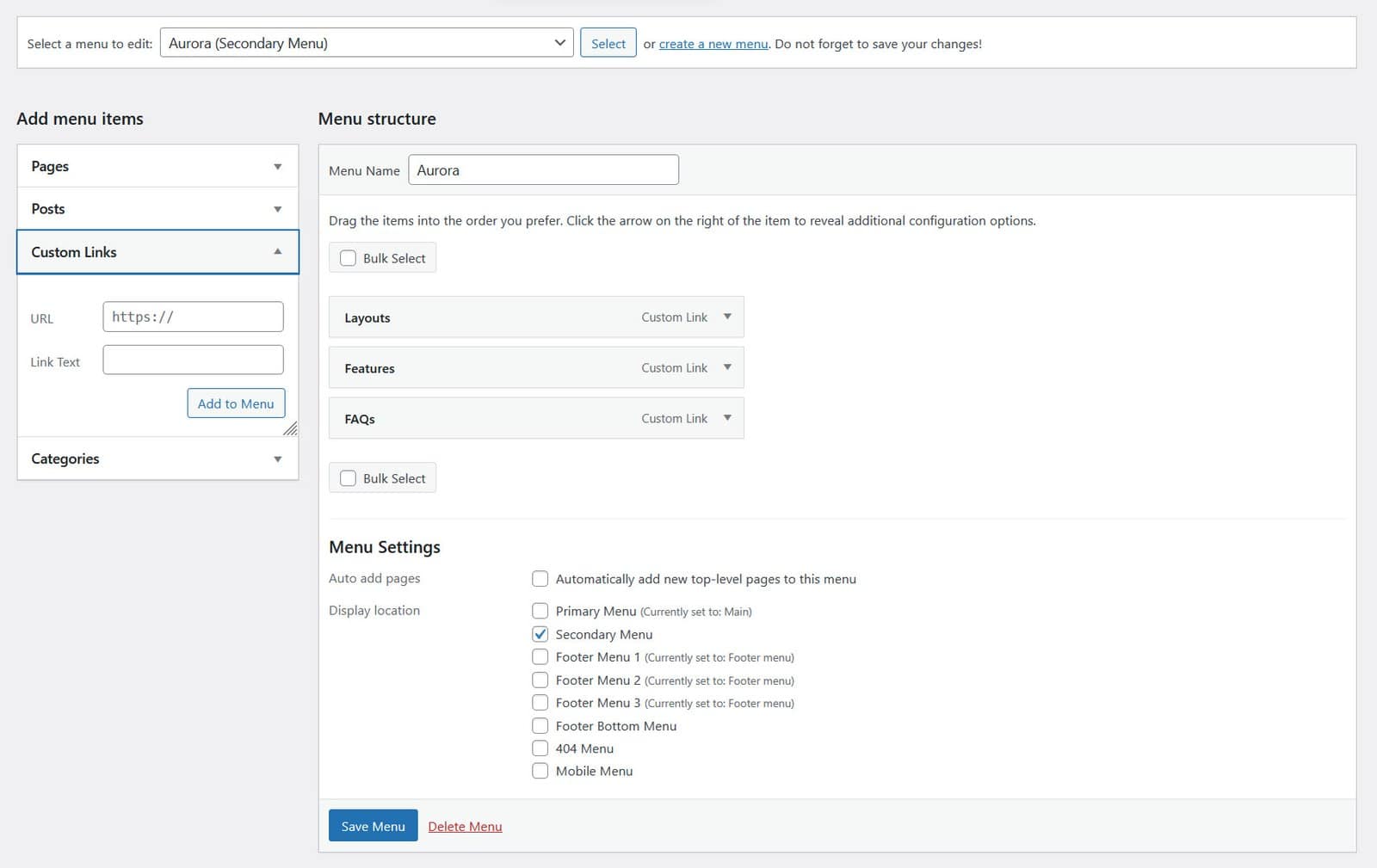
Aurora includes three footer column menu locations (Footer Menu 1, 2, 3) and a Footer Bottom Menu for the slim strip at the base of the page. Assign any WordPress menu to any of these locations. See How to Set Up Footer Menus and How to Create a Footer Bottom Bar Menu.
Recent Posts
Display a list of your most recent posts in the footer. Configure the post count and display style (Default, Detailed, or Simple) from the footer settings. See How to Configure Footer Recent Posts.
Contact Info
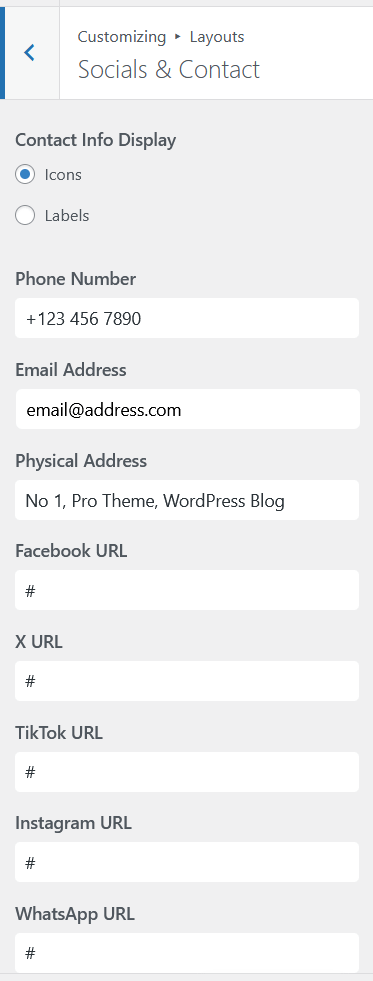
Phone number, email, and address entered under Customize → Socials & Contact can appear in the footer on layouts that include a contact area. See How to Display Contact Info in the Header and Footer.
Social Icons
Display social media icons in the footer using the same links configured under Socials & Contact. Hidden by default. Enable with the Show social links in the footer toggle. See How to Show or Hide Footer Social Icons.
Footer Layout
Choose from five footer layouts that arrange the content blocks above in different ways. Switch from Customize → Layouts → Footer Layout. The Stripped layout drops the widget area entirely and shows only a thin bottom bar with copyright on the left and social icons on the right. See Aurora Footer Layouts: All 5 Designs Compared.