

Activating your license unlocks all of Aurora’s layout templates. Without an active license, Aurora falls back to the default layout on every page regardless of what you have selected in the Customizer.
If you haven’t installed Aurora yet, see How to Install Aurora from a ZIP File first.
Where to Find Your License Key
Your license key is in the purchase confirmation email sent to the address you used at checkout. It is a long string of letters and numbers. If you cannot find it, check your spam folder or log in to your account on the Aurora purchase page to retrieve it.
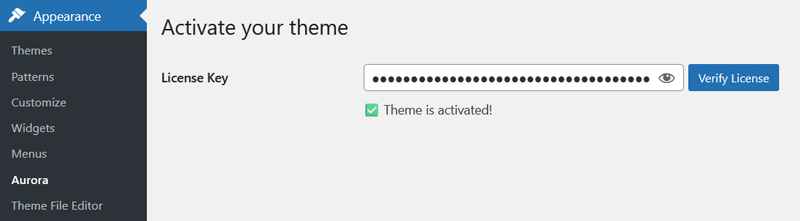
How to Activate
- Log in to your WordPress dashboard.
- Go to Appearance → Aurora.
- Paste your license key into the input field.
- Click Verify License.
- The status indicator should update to Active.
License Status Explained
| Status | What It Means |
|---|---|
| Active | License is valid and verified. All layouts are accessible. |
| Invalid | The key does not match any active license. Check for typos or use the correct key. |
| Offline | Aurora could not reach the license server. Your layouts remain accessible for up to 3 days while offline before falling back to defaults. |
Activation Errors
Invalid license key
Double-check that you copied the full key with no spaces or foreign characters.
License already in use on another site
A standard license covers one site. If you need to move Aurora to a different domain, deactivate the license on the old site first from Appearance → Aurora. Clear the license field and click Verify License to deactivate it, then activate on the new site. For unlimited sites, upgrade to the Extended License.
Could not connect to the license server
This is usually a temporary network issue. Aurora will retry automatically on the next page load. If the problem persists, check whether your server has outbound HTTP requests blocked; some hosts disable these by default.
License Renewal and Updates
Aurora is a one-time purchase. There is no annual renewal. Your license key remains valid permanently and all future theme updates are included at no extra cost.
Deactivating Your License
If you need to move Aurora to a different site or stop using it on your current one:
- Go to Appearance → Aurora.
- Clear the license field and click Verify License.
- The license slot is freed and can be activated on another site.