

Each Aurora homepage layout is made up of multiple sections, each displaying a curated set of posts. Every section is independently configurable. You can pull posts from a specific category, a tag, or a hand-picked list of post IDs. The controls are accessed directly from the Customizer using the edit pencil that appears above each section.
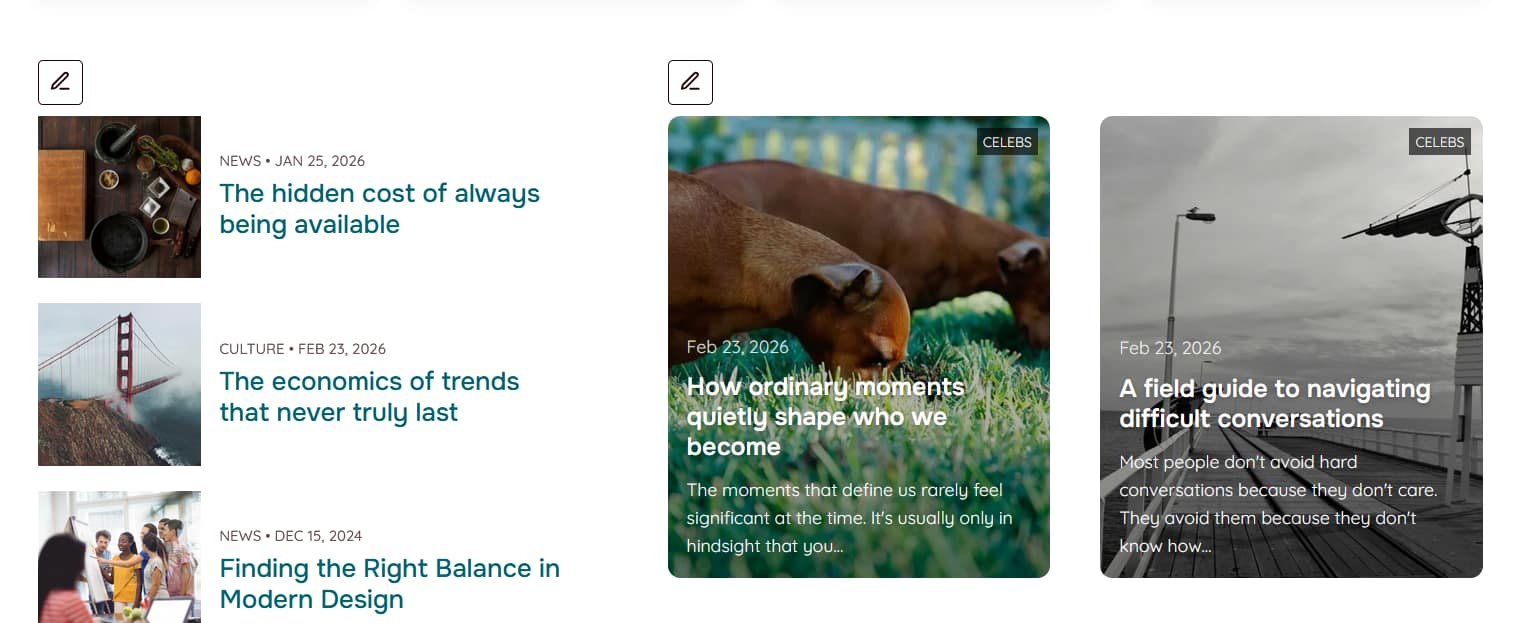
How to Access Section Settings
- Go to Appearance → Customize.
- Navigate to your homepage in the live preview.
- Look for the small pencil icon that appears above each section, or just inside the top-left corner of slider-style sections.
- Click a pencil to open that section’s settings in the Customizer panel.
Understanding the Settings
Post Source
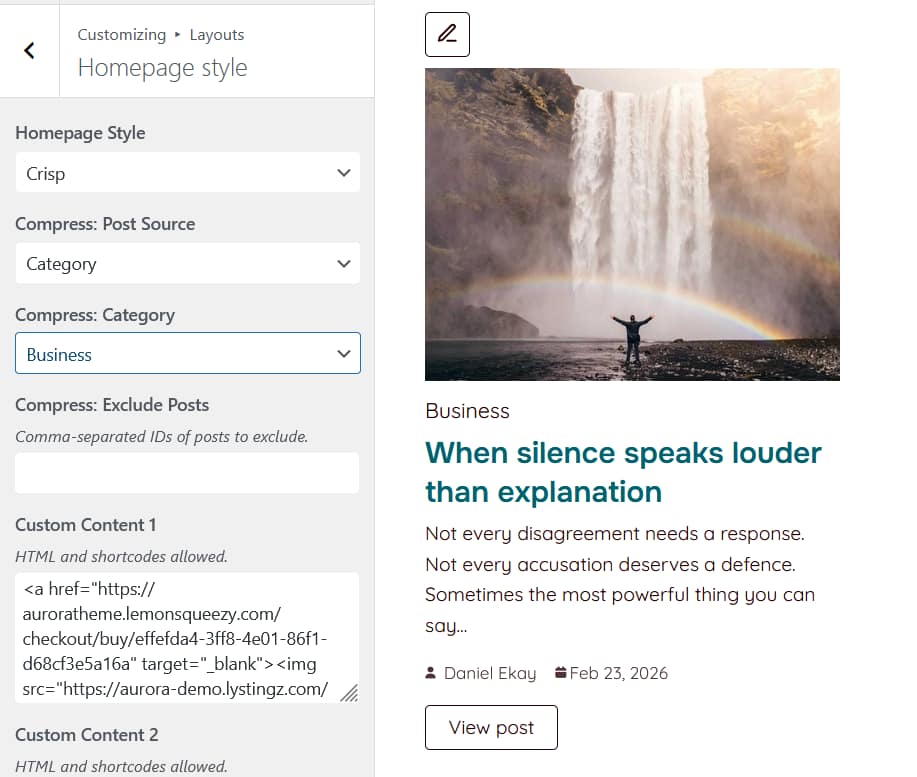
The first and most important setting. It controls where the section pulls posts from. There are four options:
| Source | What it does |
|---|---|
| None | Hides the section completely. No posts are shown and unless the section is in a two-column layout, no space is reserved. The pencil is always visible, so you can still click through to restore it. |
| Category | Shows posts from a category you choose. A second field appears to select the category, and a third field lets you exclude specific posts by ID. |
| Tag | Shows posts from a tag you choose. Same additional fields as Category: tag selector and exclusion field. |
| Specific Posts | Shows a hand-picked list of posts. Enter post IDs separated by commas. Posts are displayed in the order you enter the IDs. |
Category or Tag
Appears when Post Source is set to Category or Tag. Select the term you want the section to pull from. Only one category or tag can be selected per section.
Exclude Posts
Appears when Post Source is set to Category or Tag. Enter post IDs separated by commas to exclude specific posts from appearing in this section. Useful if a post appears in another section on the same homepage and you do not want it to repeat.
Specific Posts (IDs)
Appears when Post Source is set to Specific Posts. Enter the IDs of the posts you want to show, separated by commas. The order you enter the IDs is the order they display. To find a post’s ID, hover over the post title in WP Admin → Posts and look at the URL in your browser’s status bar. It contains post=ID.
What Happens When a Source Has No Posts
If you set a source, such as a category, tag, or post IDs, but Aurora finds no matching published posts, the section falls back to showing your most recent posts instead. A note appears beside the edit pencil to let you know the fallback is active. On the live site, visitors see the fallback posts with no indication anything is wrong.

If the source is set to None, the section is hidden on the live site entirely and shows a note only in the Customizer.
Section Names and Post Caps by Homepage Layout
Each section has a name shown in the Customizer alongside the pencil, so you can confirm you are editing the right one. Each section also has a maximum number of posts it will display, regardless of how many posts your source contains.
Default
| Section | Max posts |
|---|---|
| Overlay | 1 |
| Magazine | 8 |
| Genteel | 10 |
| Plain | 12 |
| Embed | 12 |
| Bold | 12 |
| Poster | 6 |
| Sweet | 12 |
Bold
| Section | Max posts |
|---|---|
| Card Grid | 5 |
| Magazine | 10 |
| Embed | 3 |
| Plain | 9 |
| Compress | 2 |
| Overlay | 16 |
| Poster | 6 |
| Genteel | 16 |
Crisp
| Section | Max posts |
|---|---|
| Card Grid | 6 |
| Magazine | 12 |
| Overlay | 8 |
| Embed | 6 |
| Compress | 6 |
| Bold | 5 |
| Plain | 7 |
| Poster | 6 |
| Genteel | 12 |
Laid
| Section | Max posts |
|---|---|
| Overlay | 1 |
| Card Grid | 10 |
| Magazine | 12 |
| Bold | 8 |
| Plain | 12 |
| Compress | 5 |
| Poster | 12 |
Rich
| Section | Max posts |
|---|---|
| Embed | 7 |
| Magazine | 5 |
| Card Grid | 4 |
| Genteel | 12 |
| Bold | 12 |
| Poster | 6 |
| Detail | 12 |
Tips for Setting Up Sections Well
- Avoid repeating posts across sections. If the same post appears in a category used by two sections, use the Exclude Posts field to prevent it from showing twice.
- Use None to simplify your homepage. Not every section needs to be active. Setting a section to None hides it cleanly without affecting the layout of the sections around it.
- Specific Posts is best for curated features. If you have a hero or highlight section that should always show a specific set of posts regardless of what is published, Specific Posts gives you exact control. Remember that posts are shown in the order you enter the IDs.
- Check the section name before editing. Each pencil is labeled with the section name in the Customizer panel. Confirm the name matches the section you intended to edit before making changes.